
Buzz TV Setup
Buzz TV setup made easy. Follow quick steps to start HD live TV and on demand streaming with EPG and anti freeze performance on compatible devices
Set up Buzz TV with Edge TV Store
Get your Buzz TV device ready for Edge TV Store so you can enjoy live TV, movies, and series with smooth, reliable streaming. This page provides a clear, step-by-step guide for basic setup, shows you how to add your Edge TV Store subscription, and offers simple, structured troubleshooting tips if something is not working as expected.
Whether you are using Buzz TV for the first time or reconnecting after a reset, you will find straightforward steps here so you can spend less time configuring your device and more time watching your favorite content with Edge TV Store.
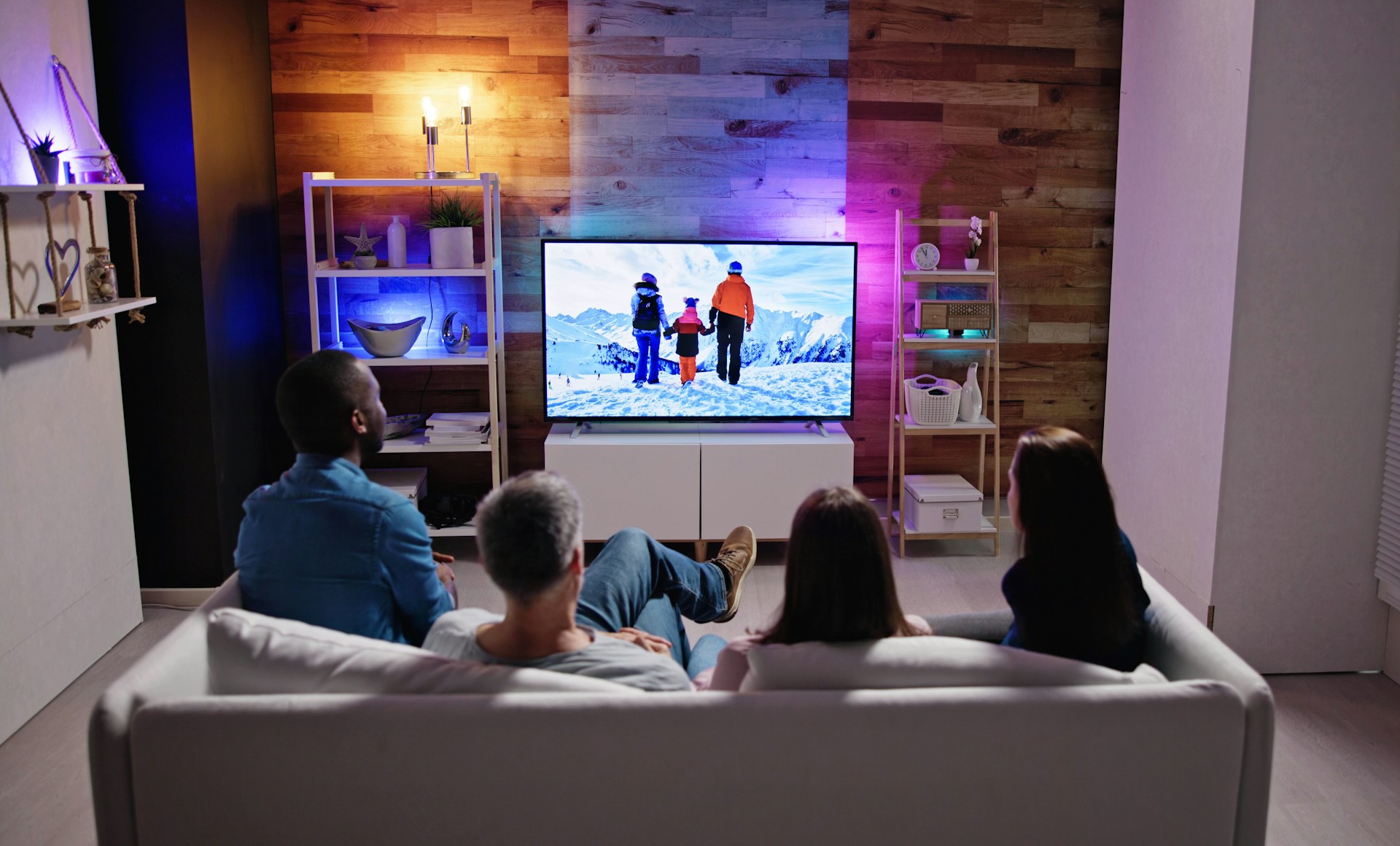
Key Benefits of Using Buzz TV with Edge TV Store
- Easy access to live TV and on-demand content through a single app
- Support for an electronic program guide so you can see what is on
- A familiar remote-driven interface for fast channel changes
- Settings that help you get the most from your internet connection
- A dedicated IPTV device that stays focused on streaming
Buzz TV devices are designed to make IPTV viewing simple and convenient. When you connect your Edge TV Store subscription, you can access your live channels and on-demand content in a single, easy-to-use interface.
With the right setup, you can take advantage of the quality streaming Edge TV Store offers, along with the features built into your Buzz TV device, so your viewing experience is smooth and consistent.
Some of the advantages you can expect include:
By following the steps on this page, you help your Buzz TV device work in sync with your Edge TV Store subscription so you can enjoy reliable viewing day after day.
Step-by-Step: How to Set up Your Buzz TV Device
Follow these steps to connect your Buzz TV device and prepare it for use with Edge TV Store.
Step 1: Connect Buzz TV to Your TV
- Plug the Buzz TV device into a power outlet.
- Connect the Buzz TV device to your TV using the HDMI cable.
- Turn on your TV and select the HDMI input that matches the port you used.
Step 2: Connect Buzz TV to the Internet
- Turn on your Buzz TV device and wait for it to load.
- Follow the on-screen prompts to connect to your home WiFi network, or
- Plug in an Ethernet cable for a wired connection if your Buzz TV device supports it.
Step 3: Open the IPTV Service Section on Buzz TV
- Once your Buzz TV box is online, go to the app or section where you add IPTV services.
- Depending on your Buzz TV model and software version, this may be labeled as a server list, IPTV service, or a similar option.
- Open that area so you can enter the information from your Edge TV Store subscription.
Step 4: Add Your Edge TV Store Subscription
- Locate the screen where you can add a new IPTV service or server.
- Use the login details you received from Edge TV Store to add your subscription to the Buzz TV device.
- Enter the server or portal address provided by Edge TV Store.
- Enter your username and password exactly as they appear in your Edge TV Store details.
- Confirm or save the information.
Step 5: Let Buzz TV Load Your Channels
- After saving your Edge TV Store details, allow the device some time to connect to the server.
- Wait while Buzz TV loads your channels and, where available, syncs your electronic program guide (EPG).
- Once loading is complete, return to the main live TV or IPTV section to begin viewing.
Using Edge TV Store on Your Buzz TV Device
Once your subscription is added and channels are loaded, you can start using Edge TV Store on your Buzz TV device.
- Navigate to the live TV area on your Buzz TV device to see your channels.
- Where available, open the movies and series sections to access additional content.
- Use your Buzz TV remote to:
- Browse categories.
- Open the electronic program guide to see what is on.
- Select the channel or title you want to watch.
- Explore the Buzz TV menus to find:
- Options to sort channels or mark favorites.
- Picture and audio settings.
- Any app-specific preferences related to your IPTV service.
Adjusting these options helps you tailor the experience to your TV, your internet connection, and your personal preferences.
Basic Troubleshooting Tips for Buzz TV Setup
If something is not working as expected, use the following structured troubleshooting steps.
Tip 1: Channels Are Not Loading
- Confirm that your Buzz TV device is connected to the internet.
- Open the settings menu on your Buzz TV device and check your WiFi or Ethernet status.
- If possible, test another app on the device to confirm it can access the internet.
- If the connection appears fine, restart your Buzz TV device by powering it off and back on, or use the restart option in the settings.
Tip 2: Error When Connecting to the IPTV Server
- Go back to the IPTV service or server settings on your Buzz TV device.
- Carefully recheck the server or portal address from your Edge TV Store subscription.
- Confirm that your username and password match the details provided by Edge TV Store.
- Remove any extra spaces and ensure that capital and lowercase letters are entered correctly.
- Save the details again and allow the device time to reconnect.
Tip 3: Poor Video Quality or Buffering
- Check whether other devices on your network are using a large amount of bandwidth.
- If possible, close other apps on the Buzz TV device.
- Use a wired Ethernet connection instead of WiFi if your device supports it.
- If you must use WiFi, move the Buzz TV device closer to your router for a stronger signal.
- Look for video or player settings inside the Buzz TV menus and select options that work best with your internet connection.
Tip 4: Electronic Program Guide (EPG) Is Missing or Out of Date
- Open the Buzz TV settings related to your IPTV service.
- Look for an option to refresh or update the electronic program guide data.
- Start the refresh or update and give the device some time to download the latest guide information.
- Reopen the guide to see if the information has updated.
Tip 5: Issues Continue After Troubleshooting
- Note any on-screen messages or error codes shown on your Buzz TV device.
- Confirm that your Edge TV Store subscription is active and correctly set up.
- Review your Buzz TV network and server settings again to ensure they match the details from Edge TV Store.
- After confirming these items, repeat any relevant steps above to test your connection and setup again.
By following these step-by-step instructions and troubleshooting tips, you can help your Buzz TV device work smoothly with your Edge TV Store subscription for consistent, reliable viewing.
Start Your Buzz TV Setup With Confidence Today
Get your streaming experience dialed in quickly using our complete Buzz TV setup guide and a risk-free 24-hour trial. If you have questions or need personalized help, reach out to us anytime through our contact page so we can get you up and running with Edge TV Store.