Google TV Setup
Set up Edge IPTV on your Google TV in minutes and you’re ready for kickoff — live sports, PPV and 6500+ channels in Full HD with an accurate TV guide.
Catch every game on Google TV
With Edge IPTV on Google TV you’ve got every major league, PPV event and fight night in Full HD, alongside 6,500+ channels of movies, series and news. An accurate EPG keeps you on time for kickoff, anti-freeze streaming keeps the action smooth, and you can pick up on your phone or tablet when you’re away from the TV.
Chromecast Setup Guide
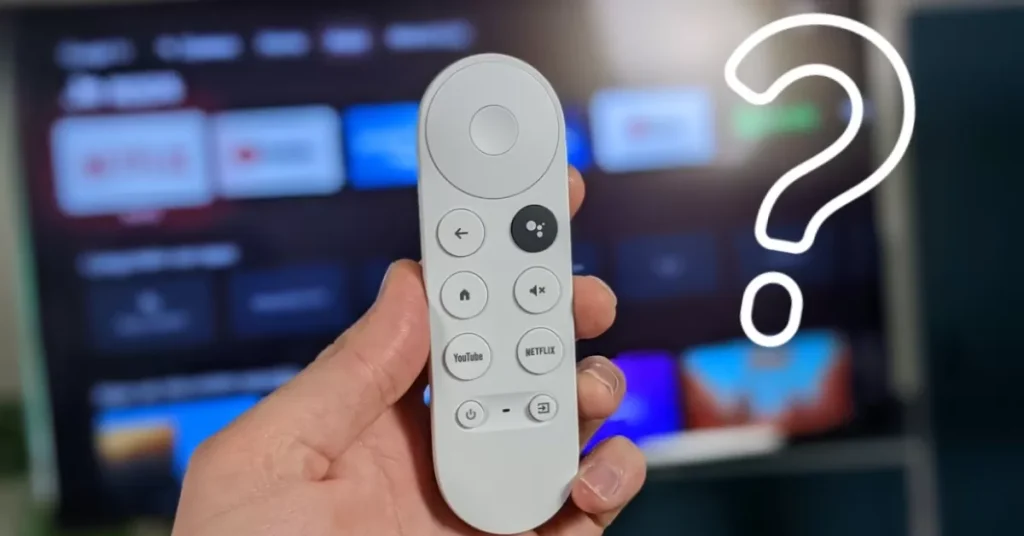
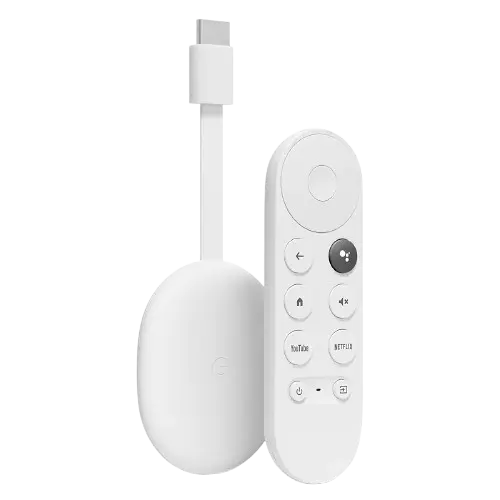
In this guide, we’ll show you how to install IPTV on your Chromecast with Google Chromecast Device
Step 1: Install Downloader App
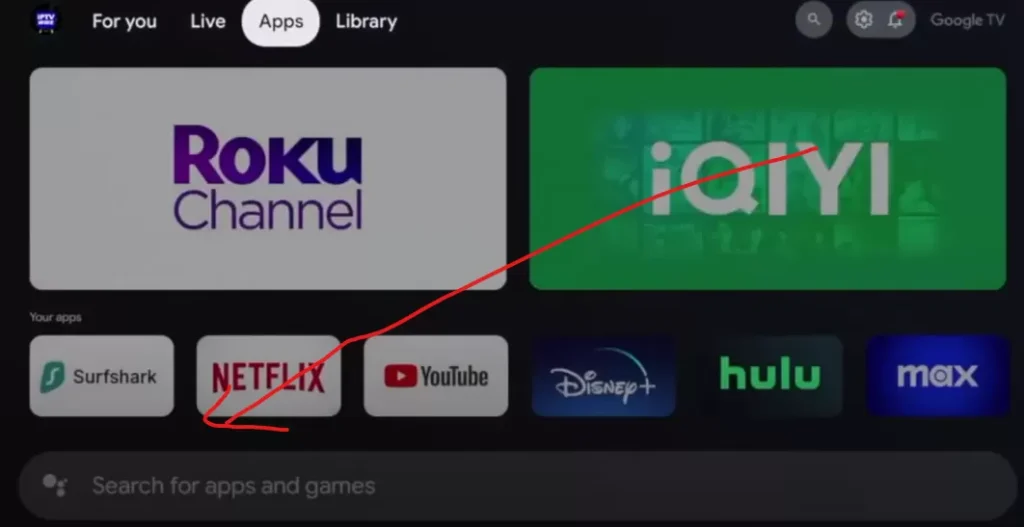
- Navigate to Home Screen: On your Chromecast with Google TV home screen, hover over the Apps section.
- Search for Downloader: Scroll down and click the search box, then type in “Downloader” and Click the search icon.
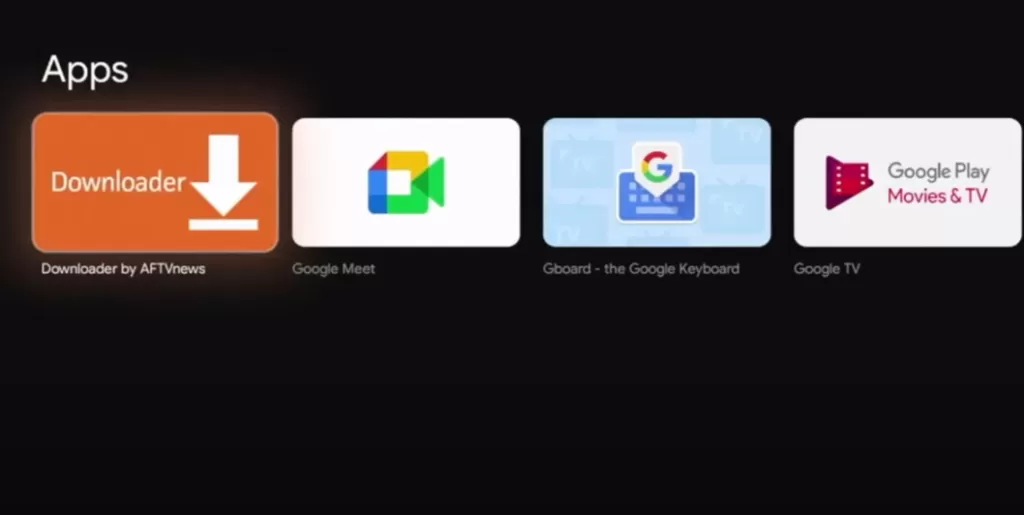
- Install Downloader: Find the Downloader app under the apps section, click on it, and then click Install.
Step 1: Enable Developer Options
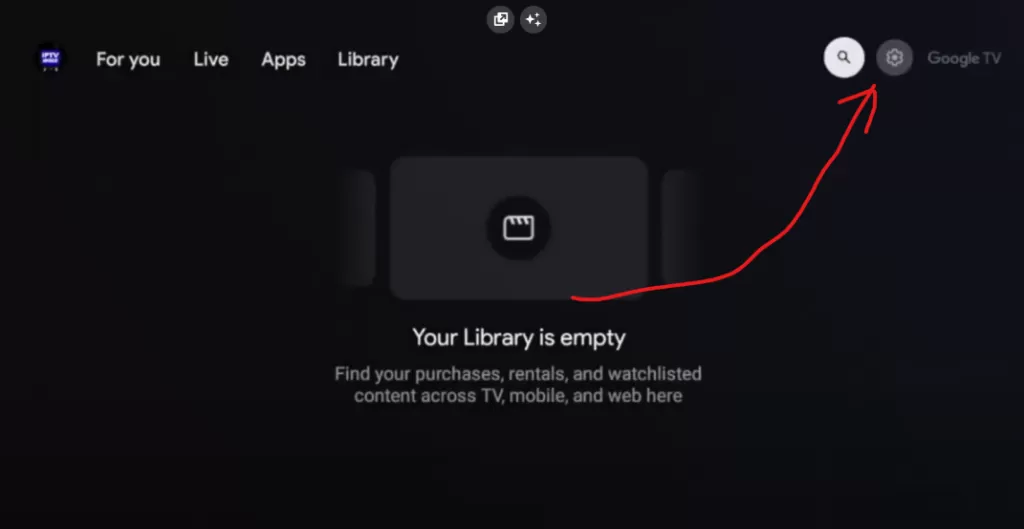
- Open Settings: Press the home button, hover over the top right, and click the settings icon.
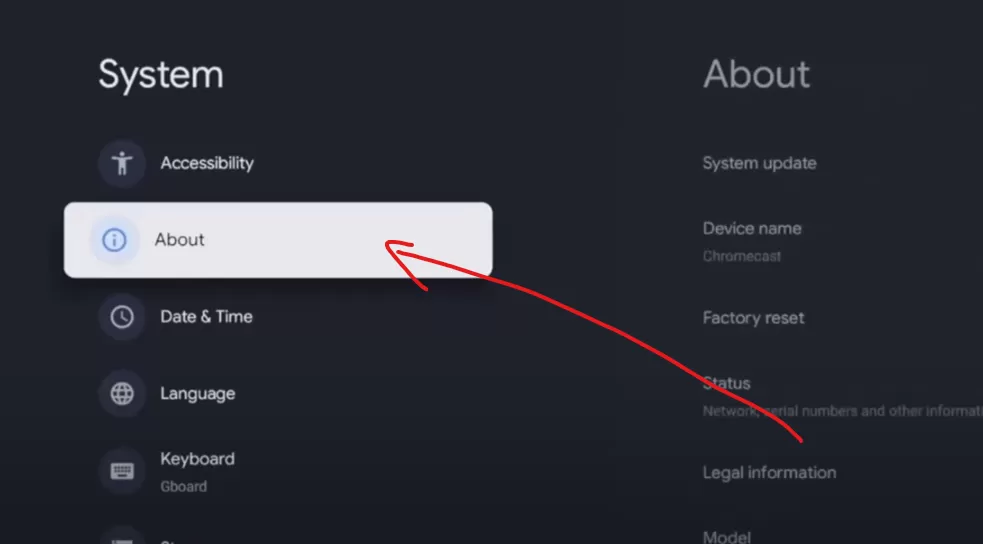
- Access System Settings: Scroll down and click System.
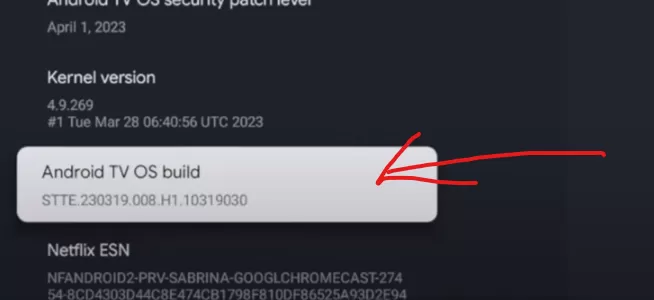
- Enable Developer Options: Click on About, then scroll down to Android TV OS build.
- Click this option multiple times until you see the message “You are now a developer”
Step 2: Allow Unknown Sources
- Return to Settings
- Enable Unknown Sources: Find and select the Security & Restrictions section, then enable installations from unknown sources for the Downloader app.
Step 3: Setup 1Stream Player
- Open the Google Play Store
- Search for “1Stream Player”
- Install the App
- Open the App
- Enter Your Subscription Details
Enter your:
Username
Password
Server URL (provided by your service)
✅ You’re Done!
You can now start watching your channels 🎉