
Buzz TV FAQ
Get quick answers to Buzz TV FAQ: setup steps, app tips, channel access, anti-freeze streaming, and 24/7 support. Start watching today.
Buzz TV FAQ for Edge TV Store Customers
This FAQ answers common questions about using a Buzz TV device with your Edge TV Store IPTV subscription. It is intended to help you understand the basics of setup and everyday use so you can access your service on a Buzz TV device.
How Buzz TV Works with Edge TV Store
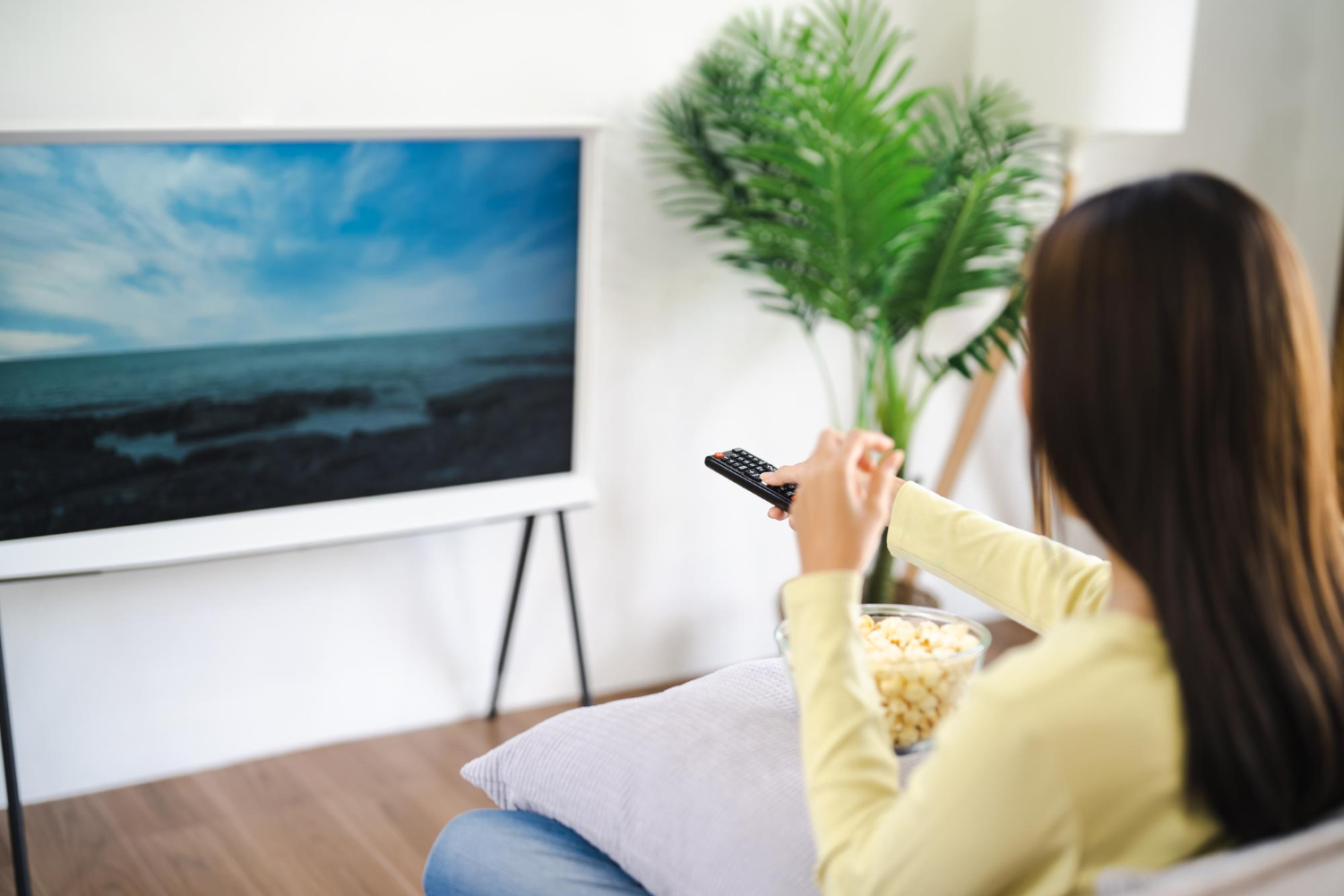
Buzz TV is an IPTV set-top box that connects to your TV and your internet. With an active Edge TV Store subscription, you can use the device to access your live channels and any available on-demand content through the connection details provided for your account.
In general, you will connect your Buzz TV device to your TV and network, then enter your Edge TV Store service details into the Buzz TV interface. Once your subscription is active and your details are correctly entered, your channels and content from Edge TV Store can be accessed on the Buzz TV device.
Frequently Asked Questions About Buzz TV and Edge TV Store
Can I Use Buzz TV with Edge TV Store?
Yes. You can use a Buzz TV device with your Edge TV Store IPTV subscription as long as you have an active subscription and enter the correct service details provided for your account.
What Do I Need Before Setting Up Buzz TV with Edge TV Store?
You will need:
– An active Edge TV Store subscription
– Your login or connection details for IPTV access
– A Buzz TV device
– A compatible TV
– A stable internet connection
Having these ready before you begin setup can help the process go more smoothly.
How Do I Add My Edge TV Store Service to Buzz TV?
On your Buzz TV device, look in the interface for an option to add or manage IPTV services or servers. Enter the connection details that Edge TV Store provides for your subscription. After you save and confirm the information, your channel list and content from Edge TV Store should appear in the Buzz TV menus if the details are correct and your subscription is active.
Why Are My Channels Not Loading on Buzz TV?
If channels are not loading on your Buzz TV device, you can check the following:
– Confirm that your internet connection is working.
– Make sure your Edge TV Store subscription is active.
– Review the service details you entered on your Buzz TV device to ensure there are no typing errors.
An incorrect entry or a connection problem can prevent your channel list from loading properly.
Does Buzz TV Change My Streaming Quality with Edge TV Store?
Streaming quality depends on several factors, including your internet speed, your network stability, and any relevant settings on your Buzz TV device. If you experience quality issues, check your network connection and review any available playback or network settings on your Buzz TV device and within your Edge TV Store account or app, if applicable.
Can I Use My Edge TV Store Subscription on Buzz TV Devices?
Whether you can use the same subscription on multiple devices at the same time depends on the specific terms of your Edge TV Store subscription, including how many connections are allowed concurrently. Review your subscription details or account information to see how many devices you can use at once.
How Do I Update Edge TV Store Details on Buzz TV?
Open the settings or service management area on your Buzz TV device, locate the entry you created for Edge TV Store, and edit or update the login or connection details there. If your account information changes, you will need to update it on the device so your channels and content continue to load correctly.
Who Do I Contact If I Have Issues Using Buzz TV with Edge TV Store?
If you have issues related to your Edge TV Store subscription, channels, or access, contact Edge TV Store support. If you encounter device-specific problems such as hardware issues or general questions about how to operate your Buzz TV device, refer to Buzz TV documentation or Buzz TV support resources.
Get Answers And Start Streaming Today
If you are ready to experience our service risk-free, start with our 24-hour trial directly from the Buzz TV faq. If you have questions or need help choosing the right option, reach out to Edge TV Store through our contact page.