
Fire Device Setup
Set up IPTV on Amazon Fire devices in minutes. Follow this step by step guide for smooth streaming, Full HD quality, EPG, and 24/7 support.
Fire Devices Setup Made Simple
Get your Amazon Fire Stick or Fire TV ready to use with Edge TV Store. This page provides a general overview of how Fire devices typically work with IPTV apps that support M3U or Xtream Codes connections.
Whether you are new to IPTV or switching from another provider, you will find high-level setup information and common tips related to Amazon Fire devices that support apps and M3U or Xtream Codes connections.
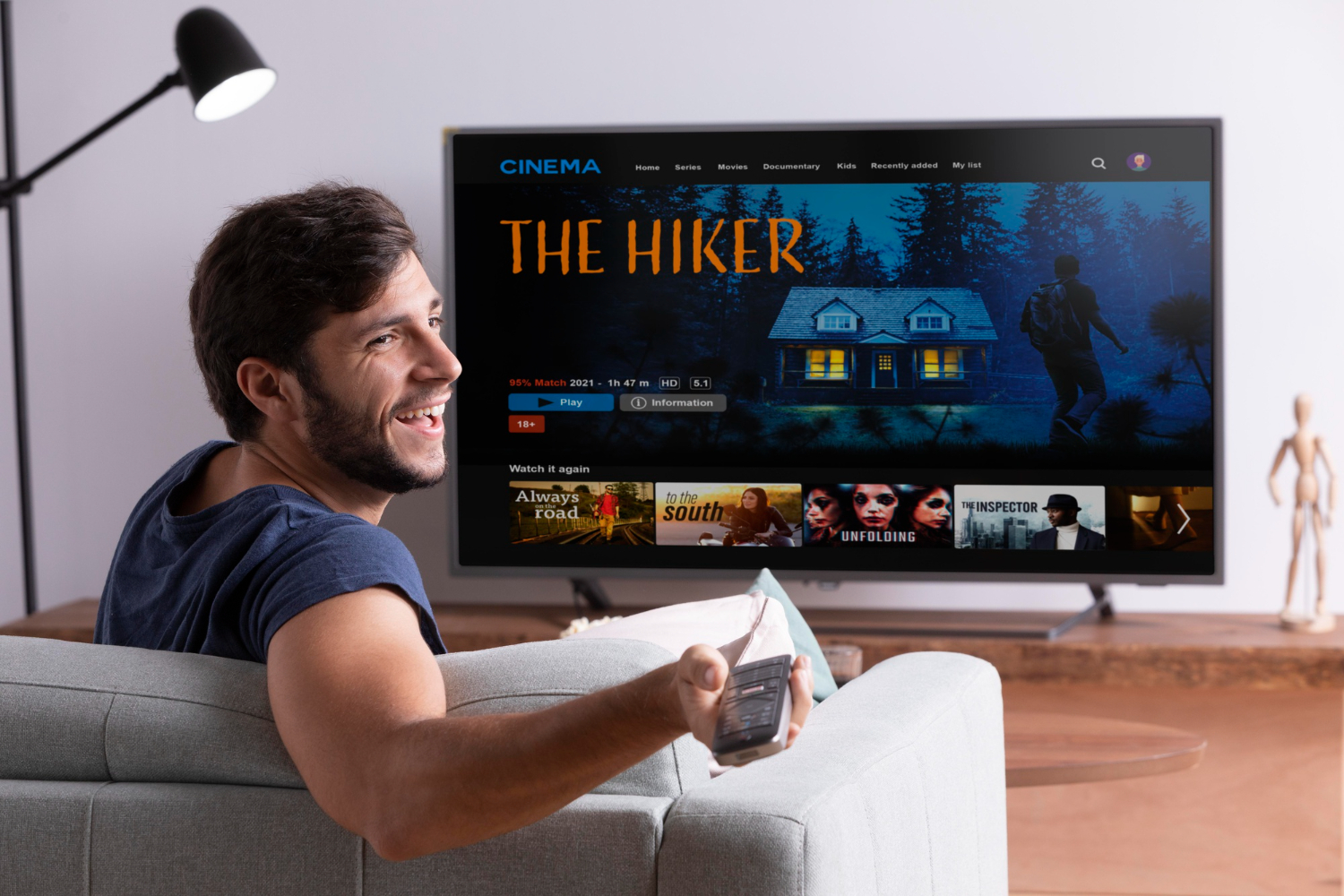
What You Need Before You Start
Before preparing your Fire Stick or Fire TV for use with Edge TV Store, make sure you have basic details ready. This can help you complete the process more smoothly and reduce the chance of common issues.
You will generally need your Edge TV Store subscription or trial details, a stable internet connection, and a compatible Fire device. Edge TV Store is used through IPTV player apps that support M3U or Xtream Codes, so you will also need an IPTV player app installed on your Fire device that supports these formats.
Information that is typically useful to have ready includes:
- Your Edge TV Store login or connection details
- A stable internet connection
- An Amazon Fire Stick or Fire TV connected to your screen
- An IPTV player app that supports M3U or Xtream Codes
Step-by-Step Fire Device Setup Overview
On your Fire Stick or Fire TV, you can usually install IPTV player apps from the available app options. Once an IPTV app that supports M3U or Xtream Codes is installed, you will typically open it and look for a way to add your service details.
Inside many IPTV apps, there is often an option to add a new playlist, portal, or account. At that point, you would normally enter the connection information provided with your Edge TV Store subscription, such as an M3U link or Xtream Codes-style login details, following the instructions inside the app you chose.
After your details are added and saved within the IPTV app, the app may then begin loading live channels and on-demand content associated with your subscription. What you see next (such as categories or any guide information) depends on the specific IPTV app and your subscription.
Troubleshooting Common Fire Device Issues (General Tips)
If channels or content are not appearing inside your IPTV app on a Fire device, common checks include confirming that your Fire device is connected to the internet and reviewing the playlist or portal details you entered in the app to make sure there are no typing errors.
If you experience buffering or freezing on a Fire device, typical steps many users try include checking internet speed, closing other unused apps on the device, and restarting the Fire Stick or Fire TV to refresh the connection. A stable internet connection on your side is important for smooth streaming in most IPTV scenarios.
If the program guide (EPG) appears to be missing or out of date in your IPTV app, you can check the app’s settings to see if there is an option to refresh or update the EPG. It may take a short time for guide data to update, depending on the app.
What to Expect From Your Fire Device Experience (in General)
Once setup is complete with a compatible IPTV app, your Fire Stick or Fire TV will typically allow you to access the channels and content included with your Edge TV Store subscription or trial, as supported by the app you use.
You will usually be able to move through channels with your Fire remote and browse any categories or guide information that your chosen IPTV app provides.
Why Edge TV Store Works with Fire Devices
Edge TV Store is designed to work with IPTV apps that support M3U or Xtream Codes, which are commonly available on Amazon Fire Stick and Fire TV devices. This allows you to use Fire devices as a way to access your subscription through compatible IPTV apps.
For specific details about channel counts, picture quality options, on-demand content, support hours, or any other service features, please refer directly to the information provided by Edge TV Store in your subscription or on the official website.
Simplify Your Fire Device Streaming Setup Today
Get step-by-step guidance with our Fire devices setup so you can start watching in minutes, not hours. If you need personal assistance along the way, reach out to Edge TV Store through our contact page and we will help you get fully set up.