
Dreamlink FAQ
Get quick Dreamlink FAQ answers for setup, troubleshooting, EPG, and streaming. Start watching 6500+ channels in Full HD with 24/7 help.
Dreamlink FAQ for Edge TV Store IPTV Users
This FAQ answers common questions users may have when using a Dreamlink device with an IPTV subscription from Edge TV Store. The information below is general in nature and may vary depending on your exact Dreamlink model and your subscription details.
General Use with Edge TV Store
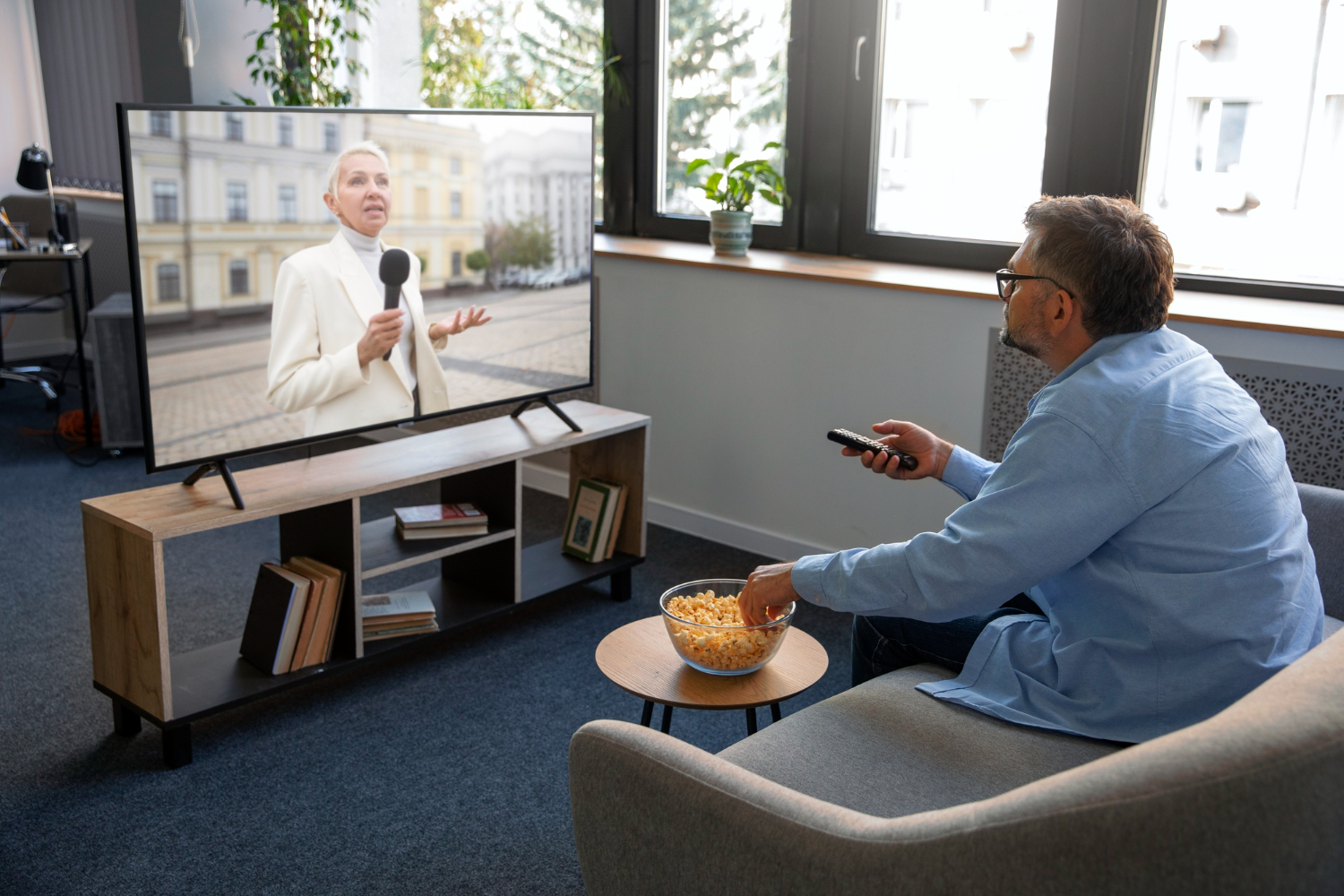
Dreamlink devices can act as set-top boxes for streaming content over the internet. When used with an active Edge TV Store IPTV subscription or trial, supported Dreamlink models may be able to access IPTV content in one place and allow control with the included remote.
Dreamlink devices that support IPTV apps or portal connections may be used to open an IPTV service and load channel lists, VOD content, and an EPG where these features are supported by both the device and the subscription. Once set up on a compatible model, you can typically switch channels, browse categories, and watch on your TV.
Common reasons users choose to connect a Dreamlink device to an IPTV subscription include:
- Using a dedicated TV box instead of streaming from a phone or computer
- Having one remote and interface for live channels, movies, and series (when supported)
- Keeping IPTV separate from other apps or devices in the home
- Watching IPTV on a TV that is connected to the Dreamlink device
Every Dreamlink model is different, so your exact steps may vary. In general, you will need to add your IPTV details in the Dreamlink menu, following the on-screen options provided by your specific device.
Dreamlink Compatibility and Requirements
Some Dreamlink devices support IPTV portals or apps that may be compatible with IPTV services such as Edge TV Store. To use such a device with Edge TV Store, you will need:
- A compatible Dreamlink model that supports IPTV portals or apps
- An active Edge TV Store subscription or trial
- A stable internet connection
If your Dreamlink box allows you to enter a server URL, portal address, or playlist details, you can usually connect it using the IPTV service credentials provided when you sign up with Edge TV Store. Some models may access IPTV through a built-in feature, while others might require installing an IPTV application from the Dreamlink App Store or menu, if available.
If you are unsure whether your Dreamlink model supports IPTV portals or playlists, check your device manual, on-screen menus, or the manufacturer’s documentation to confirm which IPTV options it offers.
Basic Setup and Common Questions
While exact menu names and steps differ by model, many Dreamlink devices follow a similar pattern for IPTV setup. Typically, you will:
- Connect your Dreamlink device to your TV and to the internet
- Open the IPTV, portal, or app section in the Dreamlink menu (if available)
- Enter the IPTV details you received from Edge TV Store in the required fields
- Save the settings and allow the device to load channels and content, if supported
Below are answers to common questions users may have when using Dreamlink with Edge TV Store:
Q: Can I use Dreamlink with Edge TV Store on any TV?
A: You can generally use a Dreamlink device with any TV that has a compatible input (such as HDMI) and that works properly with your specific Dreamlink model. To access your IPTV subscription, the Dreamlink device must be connected to the internet and support IPTV portals or apps.
Q: Do I need a special app installed on Dreamlink for Edge TV Store?
A: This depends on your Dreamlink model. Some devices have a built-in IPTV or portal section, while others may require an IPTV app. Check the apps or portal settings on your device. If your model offers an IPTV app or portal, follow the on-screen steps in your Dreamlink menu to install or open it, then enter the IPTV details provided by Edge TV Store.
Q: Why are my channels not loading on Dreamlink?
A: If channels do not appear or load correctly, possible causes include incorrect IPTV details, issues with your internet connection, or outdated settings on the device. Confirm that your Dreamlink device is online, verify the login or portal information you entered from Edge TV Store, and restart the device to refresh the connection. If problems continue, review your device and subscription information.
Q: Can I use EPG on Dreamlink with Edge TV Store?
A: EPG availability depends on both your Edge TV Store subscription and your Dreamlink device features. If EPG is supported and your IPTV connection is set up correctly, your Dreamlink interface may display program guides with your channels. Look for an EPG or guide option in your Dreamlink menus to see what is available on your model.
What to Expect When Streaming on Dreamlink
When a compatible Dreamlink device is correctly configured with an active Edge TV Store subscription, you may be able to access live channels, movies, and TV shows through the Dreamlink menus, according to the features supported by your device and subscription. You can typically switch between categories, open an EPG guide when available, and control playback using your Dreamlink remote.
Picture quality and performance depend on several factors, including your internet speed, network stability, and how your particular Dreamlink model handles streaming. If you experience buffering or playback issues, checking your internet connection and restarting the device are common first steps. You may also want to review any network or playback settings available in your Dreamlink menus.
Using Edge TV Store with Dreamlink
Many Dreamlink owners look for IPTV services that can work with their existing hardware and that provide a range of channels and on-demand content. Edge TV Store offers IPTV subscriptions, trials, and reseller options that are designed to be used on many compatible devices, including supported set-top boxes such as certain Dreamlink models.
When you use Edge TV Store on a compatible Dreamlink device, you can access the IPTV content and features included in your specific subscription, such as live TV channels, movies, and TV shows, and EPG where supported. For detailed setup instructions or account-related questions, refer to Edge TV Store’s official documentation or customer support, as well as your Dreamlink device manual.
Start Your Dreamlink Experience With Confidence
If you are ready to test our service risk-free, explore our detailed DreamLink FAQ and see exactly what to expect from Edge TV Store before you commit. Have specific questions or need a bit of guidance getting set up, just contact us so we can help you get streaming quickly.