A fast activation IPTV subscription can be activated digitally within a few minutes after payment is confirmed. You’ll typically receive login details, such as an M3U playlist or Xtream Codes information, to enter in a compatible IPTV player. The key is having your device and credentials ready.
Fast activation matters when you’re ready to watch live sports or a favourite show. But activation is only the first step: choosing a compatible device and player, then entering the correct login details, helps you get set up smoothly.
This guide explains how activation and credential delivery work, which devices support IPTV, and how to complete setup. You’ll learn what to prepare before subscribing, where to enter your login details and what to try if the service doesn’t load. Get the essentials ready, then move from checkout to streaming with less guesswork.
Key Takeaways
- Activation is digital and typically takes a few minutes after payment confirmation; your login details are used in a compatible IPTV player.
- Match the device you plan to watch on with the supported options, then have your app ready before setup.
- Follow the setup steps in order: open the player, enter the subscription credentials and load the service.
- If the stream doesn’t appear, check the credentials, internet connection and player settings before trying again.
- Choose a subscription duration that fits your viewing plans, from one month to 12 months.
How do I set up IPTV on my device step-by-step?
Start by choosing an IPTV player that works with your device. After payment, providers typically deliver digital credentials, such as an M3U playlist URL, Xtream Codes details or a portal URL. Enter those details in the player to load the service and browse its program guide.
Unlicensed IPTV can mean losing access without warning, inconsistent streams and potential exposure to unsafe apps or payment pages. Distributing content without authorization can also raise legal concerns. Choose services that clearly explain what they offer and their rights to distribute it.
Compare channel and on-demand counts carefully. Advertisements vary: some services claim 45,000+ live channels and 40,000+ video-on-demand titles, while others advertise 20,000+ live channels and libraries of 100,000+ movies and TV shows. These are examples of separate advertised catalogues, not a shared industry standard. A large total doesn’t tell you whether the channels, series or movies you want are included. Look for the specific networks and titles that matter to your household.
- Choose your screen. Use a supported television, streaming device, phone, tablet or computer. Keep the device model and operating system handy when selecting a player.
- Install the player. Find a compatible IPTV app through your device’s normal app store or installation process. Open it and locate the option to add a playlist, portal or account.
- Enter the credentials. Copy the supplied server address, username and password, or paste the M3U URL. Avoid adding spaces or changing characters.
- Load the service. Save the account details and let the player import its channels, program guide and on-demand library. A long catalogue may take time to populate.
- Test a live channel and a title. Try a familiar news channel, then select a movie or series. This confirms that both live channels and on-demand playback open in the player.
Buffering and slow channel changes depend on several factors, not a single promise. Internet congestion, Wi-Fi strength, device capacity and stream quality can all affect playback. Test several channels at different times, including channels that switch quickly between feeds. Treat claims such as “instant switching” or “buffer-free” viewing as advertising, not measured results.
Keep the credentials and the selected player together in your setup notes. For a closer look at subscription setup information, review the IPTV subscription details before choosing.
Supported streaming devices
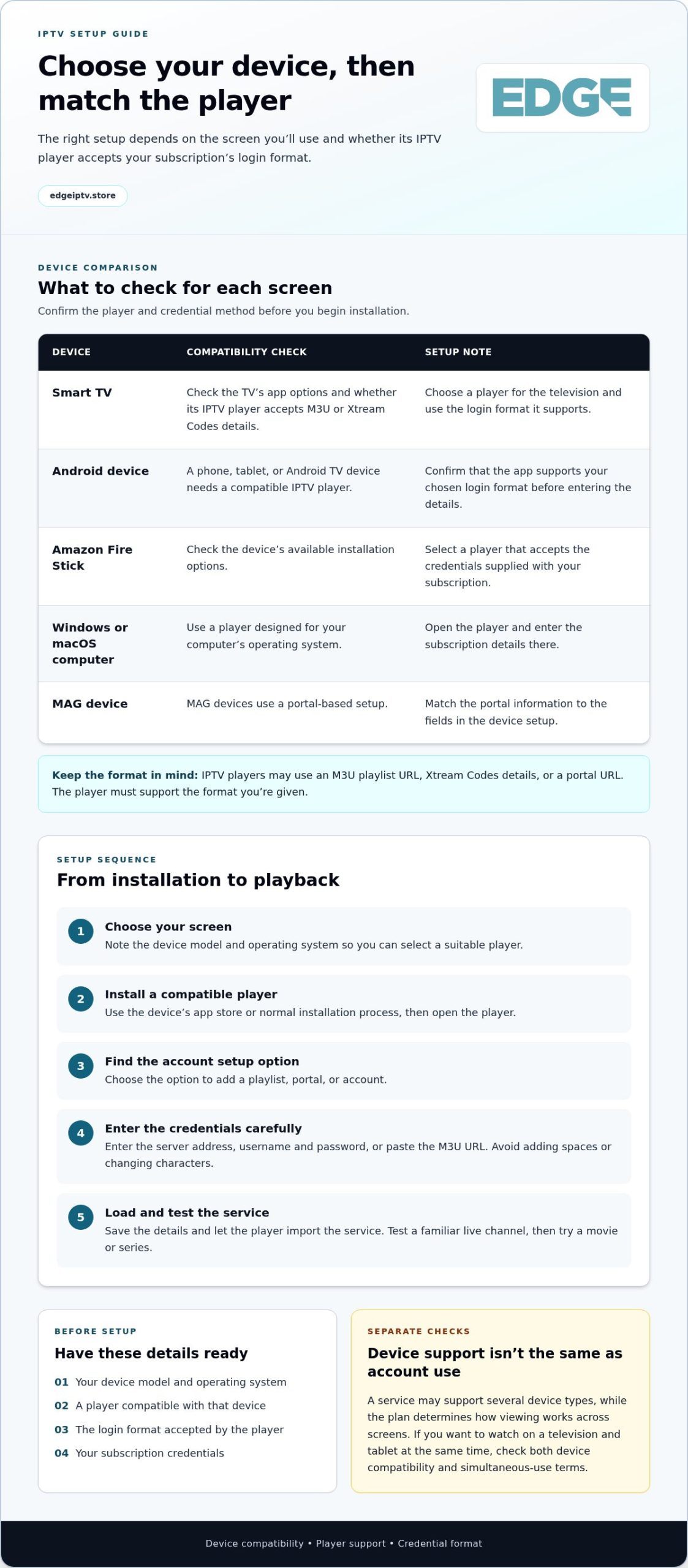
Choose the screen and player before selecting a subscription. IPTV can work through a compatible smart TV, Android device, Amazon Fire Stick, computer, MAG device, or player supporting M3U or Xtream Codes XC portals. The exact combination matters: a device may support streaming but still need an IPTV player that accepts the service’s login method.
Use this device list to narrow your setup:
- Smart TVs: Check the television’s app options and whether its IPTV player accepts M3U or Xtream Codes details.
- Android devices: A phone, tablet, or Android TV device can use a compatible player. Confirm that the app supports your chosen login format.
- Amazon Fire Stick: Check the device’s available installation options and select a player compatible with your subscription credentials.
- Windows and macOS computers: Use a player designed for your computer’s operating system, then enter the subscription details there.
- MAG devices: These use a portal-based setup. Match the portal information to the device’s setup fields.
- M3U or Xtream Codes XC players: These options suit devices whose IPTV app supports the corresponding format.
Before installing a player, note your device model, operating system and available app store. An Android device and an Amazon Fire Stick may both connect to a television, but their installation steps differ. Choose a player for the device you’ll use, not just the screen it connects to.
Then set up the player in sequence:
- Open the device’s app store or normal app installation menu.
- Install an IPTV player compatible with that device.
- Open the player and choose its playlist, portal or account setup option.
- Enter the subscription information using the format the player accepts.
- Load the channel list and test playback on the intended screen.
Check device compatibility separately from how you plan to use your account. A service may support several device types, while the plan determines how viewing works across screens. If you want to watch on a television and tablet at the same time, check both device compatibility and simultaneous-use terms before choosing a plan.
The player also affects navigation. One app may display live channels but organize the program guide or on-demand categories differently from another. Test its navigation, search and playback controls. If you move from a television to a computer, confirm that the player supports the same credential format.
Once you know your device and player requirements, compare the available IPTV subscription options against your setup.
Ready for the Fastest Canadian IPTV?
Activation speed is only one consideration. Check processing details, support, setup instructions and information about content rights together, rather than relying on speed claims alone.
Fast Activation Provider Criteria
Which IPTV providers offer fast activation in Canada? Compare their stated processing times, how they deliver credentials and which login formats their players accept. Edge IPTV’s normal order processing takes between 30 minutes and 12 hours. Processing times can vary by provider and order circumstances.
Look for practical setup guidance alongside any “instant” claim. Check where credentials are delivered and whether they include an M3U playlist URL, Xtream Codes details or a portal URL. Those details help you prepare a compatible player, but an activation claim alone doesn’t establish playback speed or stream quality.
How can you verify that an IPTV provider is licensed and legal in Canada? Look for details identifying the business and showing its authorization to distribute the channels and library it offers. A large catalogue, a premium label or quick processing does not prove content rights.
Subscription Cost
How much does an IPTV subscription cost in Canada? Prices vary by provider and plan. Compare 3 month IPTV plan costs, included features and payment terms instead of judging value by channel count alone. Check what your selected plan covers before paying.
Consider what you watch most. A household that mainly watches a few live channels may assess a plan differently from viewers who regularly use on-demand movies and series. Review renewal terms and stated fees before checkout so you understand the commitment.
Support is another useful comparison point when setup or playback needs troubleshooting. Edge IPTV provides 24/7 active support. Look for clear help with credential errors, device setup and player issues, and distinguish support availability from a promised response time.
Server uptime claims also need context. Edge IPTV advertises 99.9% server uptime. That figure doesn’t explain how uptime is measured or whether every channel is covered, so treat it as a stated service metric, not a promise about every viewing session.
If playback fails, use a simple troubleshooting sequence:
- Re-enter the supplied credentials and check the login format.
- Confirm the internet connection works on another app or device.
- Update or reopen the IPTV player.
- Try another channel to see whether the issue is limited to one stream.
Assess activation, support and plan details together. Clear processing information and useful setup guidance are more helpful than an “instant” label on its own.
Instant subscription activation and credential delivery
Activation involves two separate parts: order processing and receiving the login details needed to configure your player. For this service, normal order processing takes between 30 minutes and 12 hours; orders received from 7 a.m. to 7 p.m. are processed daily, and timing may vary on weekends.
Automatic Activation and Email Credentials
Digital activation means your account access is prepared electronically rather than delivered as a physical item. Providers commonly send login details digitally, often by email. Check the inbox used at checkout, including spam or junk folders, for setup instructions. Keep the message handy while configuring your player so you can copy the correct information.
The delivery message may contain an M3U playlist URL, Xtream Codes details or a portal URL. These are different access formats, not interchangeable codes. For example, a playlist URL belongs in a player’s playlist field, while portal information belongs in a compatible portal setup. Match the supplied format to the player’s on-screen instructions.
Activation Information and Login Methods
Before activation, have your purchase email and payment confirmation ready, along with the device and IPTV player you plan to use. Your credentials determine the login method. A player such as TiviMate may offer an Xtream Codes login, while another app may ask for a playlist URL or portal address.
Read each field before entering anything. Xtream Codes access can require a server address, username and password; M3U setup uses a playlist link. Portal-based setup asks for the portal address in a compatible player or device. A format mismatch can produce a login error even when the account details are correct.
Keep the original message intact until setup is complete. Don’t retype a long URL from memory or omit punctuation and trailing characters. If you use a smart TV in one room and an Android device elsewhere, store the credentials securely so you can follow the right prompts on each screen.
After entering your login details, save the account and let the player load its service information. If you see an error, compare the selected login method with the supplied credentials before changing anything. This can help distinguish an entry mistake from a player or device issue.
Instant subscription activation and credential delivery
Activation involves several steps: checkout, order processing, credential delivery and player setup. Keep your purchase confirmation available, then use the account details provided for your chosen login method. With digital access, there’s no physical media to install before you configure a compatible player.
Automatic Activation and Email Credentials
After checkout, watch the email account used for the order for your access details. Check your inbox and junk folder, and search for the order confirmation or subscription name. Keep the message intact during setup: copying the full credential is safer than retyping a long address.
The delivery message may include an M3U playlist URL, Xtream Codes information or a portal address. Identify which format you received before opening the player. For example, a URL intended for a playlist field won’t belong in a username field. Use the matching setup option, and avoid sharing login details in public messages.
Activation Information and Login Methods
What information is needed to activate an IPTV subscription? Have the purchase email, payment confirmation, compatible device and player ready. The service credentials determine the login method: an M3U link, Xtream Codes fields or portal information. You don’t need to create a different format yourself; enter the details provided into the corresponding fields.
Xtream Codes setup commonly separates server address, username and password. An M3U setup uses a playlist link, while portal setup asks for a portal address. Read the player’s prompts carefully. If your smart TV app offers only one login type, choose a compatible player that accepts the credentials you received.
Use a steady setup sequence:
- Keep the order confirmation and credential message open.
- Open the IPTV player installed on your chosen device.
- Select the login option that matches the supplied details.
- Enter the information exactly, preserving punctuation and capitalization.
- Save the account and wait for the player to load its content.
If you use an Android device in the living room and a smart TV elsewhere, follow the prompts in each compatible player. Menus can differ even when the login method is the same. If you see an account error, first check that you selected the option matching your credential format.
If the player rejects your details, check the server address and account fields for typing errors. Confirm that your device is connected to the internet, then reopen the player and try again. Keep the original message available to compare each character.
Edge IPTV: 12 Month
Edge IPTV offers a 12 Month subscription for viewers ready to choose a longer plan. It also offers 6 Months, 3 Month and 1 Month options, so you can match the subscription length to your viewing routine.
Choose a subscription term that fits how often you expect to watch. A shorter option may suit a first-time setup or a changing schedule, while a longer term may fit regular viewing. Compare the plan length with your preferred channels, compatible devices and viewing habits before deciding.
Explore Edge IPTV’s subscription options and choose a duration that suits you. Visit edgeiptv.store when you’re ready.
Make your next viewing choice
Choose a subscription period based on how you expect to watch, not just how quickly you want to start. If you’re deciding whether IPTV fits your routine, a shorter term can give you time to assess your setup. If it’s already part of your regular viewing, a longer option may suit your plans.
Edge IPTV offers 3 Month, 6 Months and 12 Month subscriptions. Choose the duration that feels right for your viewing habits, then use the activation steps in this guide when you’re ready to set up your service. A fast activation IPTV subscription is most useful when the plan, device and player are already a good fit for you.
Keep your preferred device and login method in mind as you choose. A little preparation makes it easier to move from selecting a plan to setting up your stream.
Explore Edge IPTV subscription options and take the next step when you’re ready. Your next viewing setup starts with a choice that works for you.
Frequently Asked Questions
How fast is activation after payment?
Order processing takes between 30 minutes and 12 hours. Processing is handled for orders received from 7 a.m. to 7 p.m. daily, and timing may vary on weekends. Once your credentials arrive, you can enter them in a compatible player and load the service. Keep your payment confirmation handy while you wait, so you can identify the order if you need help.
Do you provide an Electronic Program Guide (EPG)?
Yes, plans include an Electronic Program Guide (EPG) with schedules for all channels. It helps you see what’s on and plan around specific programs instead of browsing channel names at random. For example, open the guide in your IPTV player, find a channel and check its schedule. The guide is especially useful when you’re looking for a live broadcast at a particular time.
How many channels and movies do you offer?
The service includes 6,500+ live HD channels, plus on-demand movies and TV shows. The 6,500+ figure refers to live channels, not a combined count of channels and movie titles. If you’re comparing plans, consider the networks and types of programming you actually watch, such as sports or films, alongside the overall channel selection.
Is there a refund policy?
Refund eligibility depends on the terms that apply to your purchase. Read them before paying, and keep your order confirmation and activation messages. If setup problems affect your decision, note the error and the steps you’ve tried. Having clear order details makes it easier to explain the issue when contacting support.
What does fast activation mean for an IPTV subscription in Canada?
Fast activation means your subscription is processed digitally and access credentials are provided for setup in a compatible player. It doesn’t mean every device configures itself or every stream starts at the same speed. Have your device ready, identify the login format in your message and enter the details in the matching player fields.
How quickly do Canadian IPTV providers activate new subscriptions?
Processing times differ by provider. For this service, normal order processing takes between 30 minutes and 12 hours; orders received from 7 a.m. to 7 p.m. are processed daily, with timing potentially varying on weekends. If you’re planning to watch at a specific time, place your order early enough for processing and device setup.
How do you set up IPTV on a smart TV, Fire TV, or Android device?
Install a compatible IPTV player on your smart TV, Amazon Fire Stick or Android device. Open the player, choose its playlist, account or portal login option, and enter the matching credentials. Save the account and load the service. Player menus vary, so follow your device’s prompts and test a live channel before watching.
What should you do if IPTV activation is delayed or fails?
First, compare the player’s login fields with your supplied credentials and re-enter them carefully. Confirm that your internet connection works, then update or reopen the IPTV player. Check that your internet connection is stable enough for live streaming. If activation still fails, contact customer support with your order details and the error message you see.