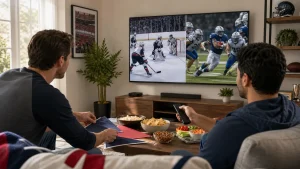
Yes, you can install one IPTV subscription on two TVs, but watching on both at the same time depends on the subscription’s simultaneous-stream allowance. Installing an app on each TV does not automatically provide two active connections.
Planning to buy an IPTV subscription with Xtream Codes for a two-TV setup? This guide explains what to check about account limits, compatible devices, setup, and viewing quality before choosing. You’ll learn how to match the subscription to the way people in your home watch.
Key Takeaways
- Assess IPTV legality by considering whether the streamed content is authorized, not by the app or connection method alone.
- Compare channel and on-demand claims with the content you actually want to watch, including live TV, films, series and sports.
- Read the trial and refund terms before subscribing so you understand what applies if the service doesn’t suit you.
- For Xtream Codes setup, have your server URL, username and password ready and use a compatible device and player app.
- Choose a subscription duration that fits your viewing plans, from a shorter term to Edge IPTV’s 12 Month option.
🇨🇦 Is IPTV legal in Canada?
In Canada, accessing or distributing copyrighted content without permission can constitute copyright infringement under the Copyright Act, regardless of delivery technology. Xtream Codes is a connection method, not a broadcaster or proof that a stream is authorized. The key distinction is permission for the content, not the app on your television.
Licensed Canadian streaming services distribute content they’re authorized to provide. An IPTV subscription using Xtream Codes connects a compatible player to a provider’s streams, but the login method alone doesn’t establish licensing. Before choosing a service, consider whether its channels and on-demand library are authorized for Canadian viewers.
Compatible devices and apps vary by provider. Common advertised options include Amazon Fire Stick, MAG boxes, BuzzTV, smart TVs, Nvidia Shield and Apple TV. Some setups use a player app with Xtream Codes login fields; others use M3U playlists. A device can support IPTV playback without guaranteeing that every app or subscription will work on it.
Use this practical checklist before planning live TV across screens:
- Identify each television’s platform, such as a smart TV operating system or a connected Fire Stick.
- Find a player compatible with that platform and the provider’s login format.
- Install the app, then enter the server address and account details supplied for the subscription.
- Test live TV and the electronic program guide on each device you intend to use.
Two televisions can use IPTV apps, but that doesn’t mean one account supports two streams at once. The provider’s connection allowance and subscription terms determine whether both devices can play simultaneously. For example, watching a hockey game in the living room while someone starts a film upstairs requires two concurrent streams, not just two installed apps.
Subscription costs in Canada vary with the plan duration, channel selection, video-on-demand library and number of permitted connections. Compare those details alongside the access method, rather than assuming Xtream Codes sets a standard rate. A monthly plan and a longer subscription can differ in terms and included access.
Unauthorized services can expose viewers to scams, privacy risks, and sudden shutdowns. A seller may disappear after payment, account details may be mishandled, or streams may stop if the service closes. Treat requests for unnecessary personal information and unclear payment terms as warning signs.
For a practical overview of IPTV subscription options, compare the plan details with your devices and household’s simultaneous viewing needs before deciding.
Channel and video-on-demand library claims
Channel totals can look impressive, but a headline number won’t tell you what’s watchable in Canada. Some IPTV listings advertise more than 33,000 live channels and 115,000 movies and series. Treat these figures as catalogue claims, then look for the Canadian channels, sports, and titles you’d actually use.
Regional channel access matters. A list naming CBC, CTV, TSN, or Sportsnet gives you specific channels to look for in the electronic program guide. Check that the guide identifies channels clearly and shows current programme information. For sports, look for a named league or event, such as the NHL, rather than relying on a broad “sports included” label.
A large video-on-demand library also needs useful organization. Look for separate movie and series categories, readable titles, and working episode listings. If a listing promotes 4K or catch-up, identify which channels or titles those features apply to. One advertised feature doesn’t establish that every item supports it.
Use this quick review before assessing a library in your IPTV player:
- Search the guide for Canadian channels you regularly watch, such as CBC or CTV.
- Look up specific sports, teams, or leagues instead of trusting a category label.
- Open a movie and a series episode to assess titles, descriptions, and playback.
- Compare the library on the screen you’ll use, since menus can differ by app.
Test playback when you normally watch. A channel appearing in a list doesn’t show how it performs during a live event. If buffering interrupts a programme, note whether it affects one channel, several channels, or on-demand video. That helps distinguish a channel-specific issue from a broader streaming problem.
For a two-screen household, compare what each viewer is likely to watch. One person might want live sports while another browses a series. The library’s value depends on those viewing habits, not just its total count. Also distinguish channels from on-demand titles: live channels broadcast scheduled programming, while VOD lets you choose available movies or episodes.
Check category names and examples before deciding whether the selection fits. A useful comparison starts with the Canadian content you want, then moves to sports, films, and series. You can compare IPTV subscription options against that viewing checklist.
Is there a money-back guarantee?
A free trial and a money-back guarantee are different. A trial gives you temporary access before you choose a paid subscription; a refund policy explains whether payment can be returned after purchase. Read the terms before paying, and don’t assume trial access includes a refund guarantee.
Use a trial as a focused test, not a quick glance. On your smart TV, connect a compatible IPTV player using the login details provided, then test live TV and on-demand playback. Try a Canadian channel, a movie, and a series episode. Check the menus, picture quality, and playback during your usual viewing hours.
For a two-TV household, test the setup that matters most. Install the player on each intended screen, then try watching on both if the trial terms permit. This shows whether the account handles your household’s actual viewing pattern. A stream starting on one television doesn’t establish that another device can play at the same time.
An M3U playlist is a file or link that lets a compatible player load channel information. During a trial, add the playlist only to a trusted IPTV app and review the categories it displays. A playlist can load successfully while individual channels still fail to play, so test actual streams rather than judging the setup by its menu alone.
Before starting a trial, use this checklist:
- Record the trial’s start and end time, plus any automatic renewal terms.
- Check whether trial access includes live channels, movies, series, and the player features you need.
- Test the devices and simultaneous viewing pattern planned for your home.
- Save the provider’s refund terms and payment confirmation for reference.
Refund conditions can depend on timing, payment status, and the reason for the request. Read the written terms for deadlines, exclusions, and how to submit a claim. For example, a policy might treat a technical fault differently from a change of mind. Follow the stated process and keep relevant account messages.
Don’t assume “instant activation” means a refund request will be resolved instantly. Activation describes account access; refund handling follows separate terms. If the service doesn’t suit your television setup, review the applicable policy before purchasing a longer plan. Testing the service helps you assess usability, but it doesn’t replace reading the refund conditions.
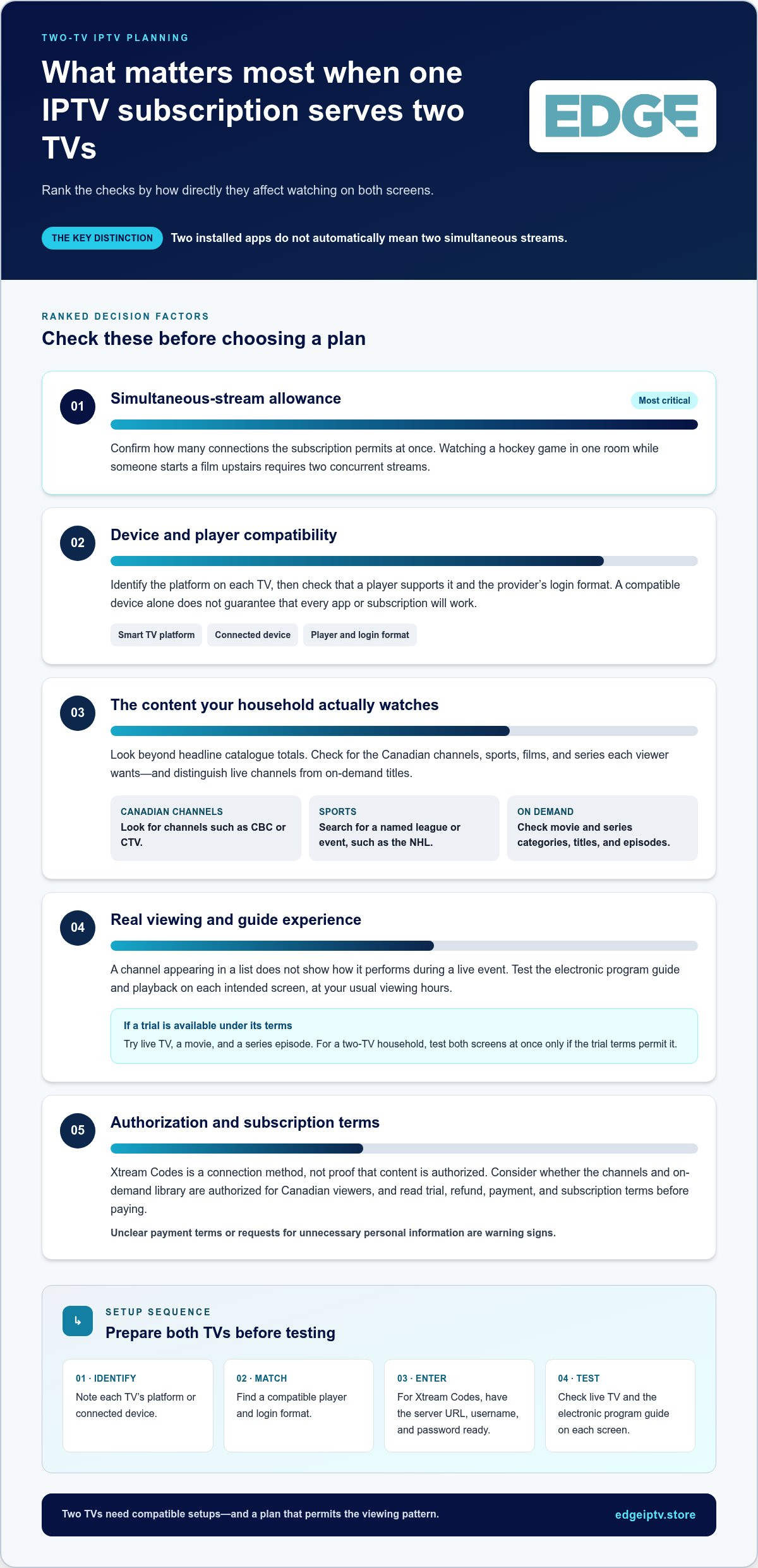
Setup using a server URL, username, and password
An Xtream Codes setup uses account credentials in a compatible IPTV player. For two televisions, install the player separately and confirm the subscription allows both screens to stream at the same time.
Server Credentials and Account Activation
After an IPTV service activates an account, it provides a server URL, username, and password. The URL connects the player to the service; the username and password identify the account. On a compatible Android device or Amazon Fire Stick, open an IPTV player, choose its Xtream Codes login option, and enter each detail in the matching field. Avoid adding spaces when copying the credentials.
Account activation and app setup are separate steps. You can install an app on a television before the account credentials are ready, but live TV won’t load until the player connects. Keep the URL and login details handy while setting up each device. Treat them like account passwords, and don’t post them in public forums or screenshots.
Setup Time
Setup time depends on account activation, app installation, and your home internet connection. An Amazon Fire Stick with the player already installed takes fewer steps than a new smart TV setup that needs an app download and sign-in. The provider’s activation process also affects when credentials are ready. Have the device, internet connection, and login details ready to avoid preventable delays.
Plan for two stages: account access, then device setup. If the player accepts the credentials but channels don’t load, check the URL and login fields before reinstalling the app. If one television works and the other doesn’t, compare their settings. A typo or a different player configuration may explain the difference.
Use this sequence on each television:
- Connect the smart TV, Android device, or Fire Stick to the home internet.
- Install an IPTV player that supports the account’s login format.
- Choose Xtream Codes login and enter the server URL, username, and password.
- Save the account, allow the channel list to load, then test live TV.
Next, test how your household will watch. Start a channel on the living-room television, then try another stream on the second TV. If the second screen can’t play, don’t assume the installation failed. The subscription’s connection allowance determines whether both can stream at once; installing an app on two devices doesn’t automatically provide two active streams.
If you plan to switch between televisions rather than watch both at once, sign in on the device you’ll use and test playback. Before changing settings, note which player works and which credentials it uses. This makes troubleshooting easier if a device is reset, an app is reinstalled, or you move the Amazon Fire Stick to another screen.
Live TV, movies, series, sports and pay-per-view
Two televisions can support different viewing routines, but the subscription’s connection allowance controls simultaneous viewing. One person might watch live TV in the living room while another starts a series upstairs. Content categories matter, but the number of permitted active streams determines whether both screens can play together.
Live channels suit scheduled programmes, news, and sports. An electronic program guide helps viewers find a specific event or channel without scrolling through every listing. For example, someone looking for an NHL game can use the guide to find sports channels while another viewer browses movies on a second screen. Check which channels and events are available in the service’s catalogue.
Video on demand works differently. You choose movies and series from a catalogue rather than watching them at a scheduled broadcast time. Check whether titles have useful descriptions and series listings show the episodes you want. A large library claim doesn’t tell you whether a particular film, season, or Canadian channel is included.
Pay-per-view and sports content also deserve a closer look. Search for the event by name, see how it appears in the channel guide, and test playback before settling in for a major match. A category label alone doesn’t establish that every event is included. Distinguish regular sports channels from individual pay-per-view events when comparing access.
For a two-screen household, map content to viewing habits before choosing a plan:
- List the live channels each person watches most often.
- Note whether either viewer regularly chooses movies or series on demand.
- Include sports and pay-per-view events that matter to the household.
- Compare those habits with the account’s simultaneous-stream allowance.
Streaming quality is another practical part of the test. Watch a live programme, then play a movie or series on the other television. If one screen buffers, note whether it happens on a particular channel, during a specific event, or across different content. This helps show whether the issue follows one stream or affects the household setup more broadly.
Some plans include Full HD channels and anti-freeze technology. Treat these as service features, not a promise that every stream will look or perform identically. The television, player, home internet, and selected stream all affect the viewing experience. Test the content you care about on the screens you’ll use.
Make your decision from real viewing needs, not a headline library count. Explore IPTV subscription options and compare them with your household’s preferred content and screen use.
Edge IPTV: 12 Month
Edge IPTV offers a 12 Month subscription for viewers choosing a longer plan. It also offers 1 Month, 3 Month, and 6 Months options, so you can compare durations against your viewing routine.
Edge IPTV includes live channels, sports, pay-per-view events, movies, series, and an electronic program guide. Compatible devices include smart TVs, Android devices, Amazon Fire Stick, Windows and macOS computers, MAG devices, and devices supporting Xtream Codes. For a two-TV household, remember that installing the service on both screens doesn’t establish that both can stream simultaneously. The subscription’s connection allowance matters.
Compare the subscription duration with the content and device setup you expect to use. Visit edgeiptv.store to explore the available options.
Choose a plan that fits your viewing routine
Before you decide, sketch a typical week of viewing. Note who uses IPTV, which screens they use, and whether their viewing overlaps. This simple schedule can show whether you need simultaneous streams or can share access at different times.
Edge IPTV offers subscription options for different viewing durations, including one, three, six, and twelve months. Compare the available terms with how consistently you expect to use the service, and consider your device setup before choosing. Plans include live channels, on-demand content, and a TV guide, with no contracts or hidden fees.
Contact Edge IPTV for subscription details and take your next step with confidence.
Frequently Asked Questions
How Is it Done?
Set up the same IPTV service on each television, then use each screen according to the account’s connection terms. If your household watches at different times, take turns signing in or streaming. If viewers want separate programmes simultaneously, the subscription must allow concurrent streams. Check this before you buy: device installations and active streams are separate parts of a multi-TV setup.
How do I set up IPTV on my device step-by-step?
First, identify the television’s operating system and choose a compatible player. Install the app, open its account or playlist screen, and use the login method provided with your subscription. Save the profile, then test a channel and an on-demand title. Repeat the process independently on a second TV. Keep track of each device’s profile to simplify troubleshooting.
What are Xtream Codes and how do I log in?
Xtream Codes is a login option supported by some IPTV player apps. It connects a compatible app to a service account; it isn’t a channel or content library itself. Look for an Xtream Codes or XC login option in the player’s account screen. If the app only offers playlist import, check its supported formats before adding an account.
What is IPTV and how is it different from cable?
IPTV sends television programming over an internet connection, while cable TV delivers programming through a cable network. IPTV generally uses a compatible player and connected device; cable viewing typically relies on a cable provider’s equipment and package. For example, a household can move an IPTV-compatible streaming device between televisions, while a cable setup depends on the equipment and service arrangement at each screen.
What is an Xtream Codes IPTV subscription and how does it work?
It’s an IPTV subscription used through a player that supports Xtream Codes authentication. The subscription provides service access, while the player provides the viewing interface. Before choosing one, compare the account’s channel and on-demand selection with your household’s priorities. For two TVs, distinguish between adding the account to both devices and having permission to stream on both at once.
Where can I legally buy an IPTV subscription in Canada?
Choose an IPTV subscription from a provider authorized to distribute the channels and programmes it offers in Canada. Copyright permission concerns the content, not whether playback uses an app, playlist, or cable equipment. Before paying, look for clear service terms and specific content information. If a seller makes broad claims but gives no meaningful details about its offering or terms, treat that as a reason for caution.
What information is needed to activate an Xtream Codes subscription?
Activation usually involves account details supplied with the subscription and the device you plan to use. Keep the confirmation message handy, along with the name of the player you intend to use. For a shared home, decide which TV will be the primary setup and whether you’ll add the account to another screen. Protect login information like any other account credentials.
How do I set up Xtream Codes in a compatible IPTV app or device?
In the player’s account menu, select its Xtream Codes or XC option and follow the prompts. Some apps label this choice differently, so look for a login method rather than playlist import. After saving the profile, let the app refresh its listings before testing playback. On a second television, repeat the process and note any device-specific app settings that differ.