An M3U playlist is a list of stream addresses, not a safety guarantee. An IPTV service compatible with M3U playlists can work with a compatible player, but the playlist’s source and the reliability of its stream links matter just as much as playback support. Treat unfamiliar playlist files and links with care before loading them.
It’s easy to focus on whether a playlist opens and miss the details that shape everyday viewing: stale streams, confusing player controls, or a programme guide that doesn’t show what’s on. You’ll learn how to assess playlist safety and freshness, compare player compatibility and interface features, understand EPG support, and choose a practical setup.
Next, we’ll look at ways to load M3U playlists in VLC, Kodi, and IPTV apps, then compare the features that help you find and watch content with less friction. Clear checks. Better-informed choices. A setup that fits how you watch.
Key Takeaways
- Check a playlist’s origin and treat unfamiliar files or links carefully before adding them to a player.
- Spot stale streams by testing playback and watching for links that stop working or fail to load.
- Choose a player that works with your device and makes channel browsing and playback controls easy to use.
- Look for EPG support if you want programme listings; playlist data and guide information may be handled separately.
- Compare loading options in VLC, Kodi, and IPTV apps to find a setup that suits how you watch.
1. Android TV and Fire TV player compatibility
For an Android TV or Fire TV setup, match the player to both the device and playlist format. M3U and M3U8 are playlist files containing stream addresses, not streaming services. A compatible IPTV player must accept the playlist or its link, then load the streams. The device’s app options and the player’s import method shape the setup.
VLC, Kodi, TiviMate, and IPTV Smarters can use M3U playlists. Their availability and controls may vary across Android TV, Fire TV, phones, and other devices. Before choosing, check the player’s device listing and whether it accepts a playlist URL or a local file. A successful install alone doesn’t show that the playlist itself will play.
On Android TV, use the device’s app store to find a player, then follow its playlist-import steps. On Fire TV, look for a player designed for that device and confirm its M3U option. If a family member uses a television in another room, repeat the compatibility check there. Don’t assume the same app or login works identically on every screen.
How do Canadian M3U-compatible IPTV services compare for reliability, device support, and customer service? Compare working stream links, supported devices, playlist-update processes, and the available support channel. A player can’t repair a dead stream, so assess the playlist separately from the app.
Do Canadian internet providers block IPTV streams, and what rules apply to IPTV use in Canada? An M3U file doesn’t determine whether a stream is accessible; the network and stream source affect playback. Use playlists in line with Canadian law and the relevant provider’s terms.
How much do M3U-compatible IPTV services cost in Canada, including monthly and annual plans? Compare the displayed billing period, renewal terms, and included features for each plan. Monthly and annual options have different commitment periods; assess the full term rather than choosing by billing frequency alone.
Which IPTV services legally support importing M3U playlists in Canada? Import capability is a player feature, not proof that a service has rights to distribute every stream. Choose streams offered with the necessary authorization and follow the provider’s terms.
Which IPTV apps in Canada support M3U playlists on smart TVs, Android, iOS, and streaming devices? VLC, Kodi, TiviMate, and IPTV Smarters can use M3U, while device support depends on each app. Dedicated player options exist for Android, desktop, and iOS; check the specific app’s device compatibility before installing.
Prefer a player with clear playlist-management tools, readable channel names, and straightforward playback controls. Test one playlist entry, then browse the channel list and check that the expected stream opens. This quick sequence can help distinguish player setup problems from unavailable streams before you organize viewing across multiple rooms.
2. Checking playlist freshness and dead streams
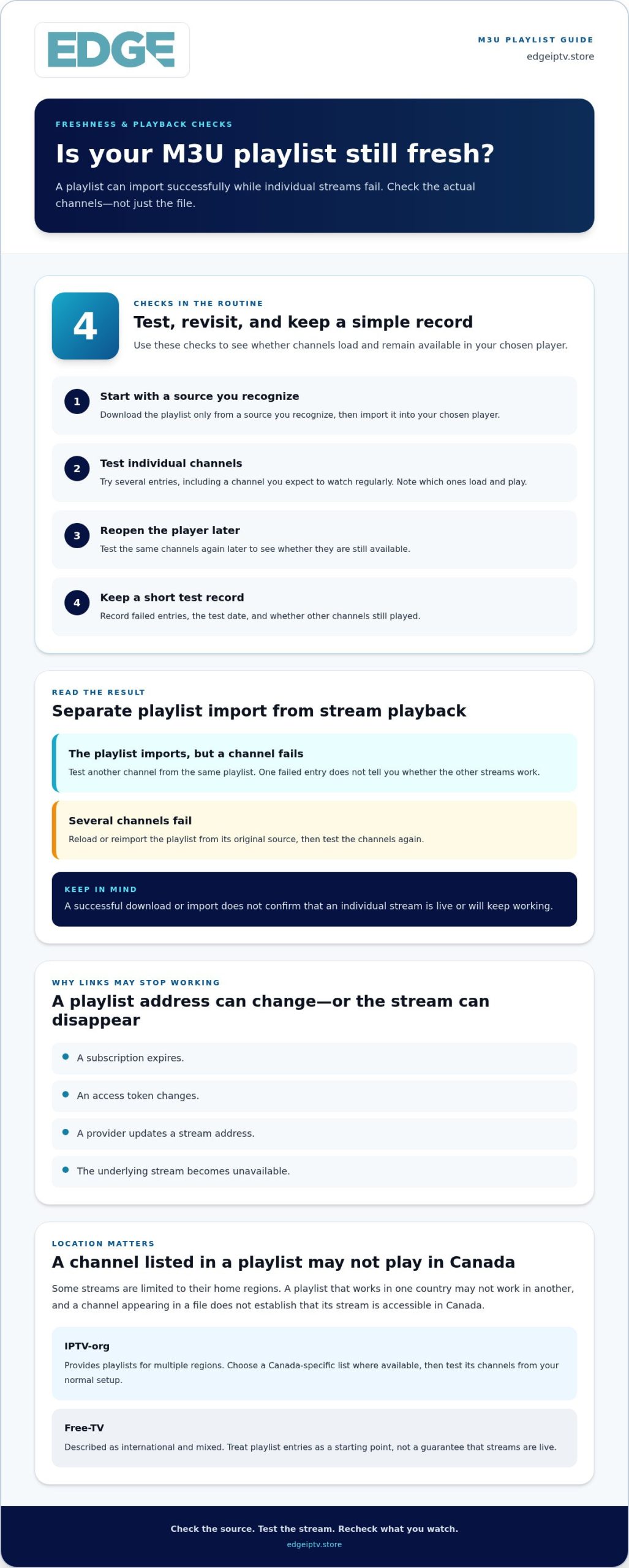
A playlist can open correctly while individual channels fail. Test actual streams, not just whether the M3U file downloads or imports. Pick a few channels, including one you expect to watch regularly, and start each stream in your chosen player. Note whether it loads, plays, and remains available when you try again later. This separates a player setup issue from a stream that may no longer work.
M3U links can stop working when a subscription expires, an access token changes, a provider updates an address, or the underlying stream becomes unavailable. If one entry fails, test another channel from the same playlist. If several fail, reload or reimport the playlist from its original source, then test again. Avoid repeatedly relying on a saved link when its source may have changed.
Use a simple test routine before organizing channels for your household:
- Download the playlist only from a source you recognize, then import it into your chosen player.
- Test several individual channels and note which entries load successfully.
- Reopen the player later and test the same channels again.
- Keep a short record of failed entries, the test date, and whether other channels still played.
Free ad-supported streaming TV services can publish public playlist exports. Some free streaming services may offer playlist exports, but availability can change. Availability can change by region, and a channel appearing in a file doesn’t establish that its stream will work in Canada. Test the specific channel in your player instead of assuming every listed entry is accessible.
Geographic restrictions matter. Some streams are limited to their home regions, so a playlist that works in one country may not work in another. IPTV-org provides M3U playlists for multiple regions, making the selected country relevant. Playlist links were tested in the USA on October 13, 2026; that test location alone doesn’t establish Canadian playback. Choose a Canada-specific list where available, then test its channels from your normal setup.
For free playlist sources, IPTV-org offers regional playlists, while Free-TV is described as international and mixed. Treat each source as a starting point, not a guarantee that streams are live. Check where its channels originate, whether a stream opens in your player, and whether it works consistently when tested again. Importing a playlist is only the first step; working channels are the practical measure of freshness.
3. Player features and user interface
An M3U playlist supplies stream entries; the player determines how you browse and control them. In a family room, a readable channel list can matter as much as fast access to a sports stream. Compare the layout on the actual device, because a television remote and a phone screen offer different ways to navigate.
Free-TV is described as an international, mixed playlist. Its entries may cover different regions and content types rather than one focused category. Check how the player groups channels and whether their names are clear enough for family members to find what they want. A mixed list can take longer to browse when channels are poorly organized.
Ask what a “premium” feature set actually changes. The M3U format itself doesn’t provide an interface or determine player tools. Features depend on the app and its version. Review the functions available in your chosen player, then prioritize those that solve a real viewing problem.
- Channel organization: Look for practical ways to browse a long playlist and locate favourites.
- Playback controls: Test how easily the remote can pause, resume, or change channels.
- Search and sorting: Try finding a sports channel by name instead of scrolling through every entry.
- Playlist management: Check whether the app makes it straightforward to refresh or replace a playlist.
TiviMate is one player to consider when comparing IPTV interfaces, but the experience can vary by device and version. Test the same playlist on the television your family will use. Check text size from the couch, remote navigation, and whether returning to the channel list interrupts playback more than you’d like.
What channels and on-demand content do Canadian M3U-compatible IPTV services include? The playlist source determines its entries. An M3U playlist can contain live channel streams, and on-demand items only when the source provides those entries. Check the actual playlist for the categories your household wants, such as sports or films.
Do a short hands-on test before settling on a player. Import the playlist, find a channel, switch away, then return to it. Repeat the steps on each family device. If one person watches on Android TV and another uses Fire TV, compare the interface on both rather than assuming they behave identically.
Keep the setup simple. A clear menu, useful channel names, and easy remote control can make a large playlist more manageable. Choose features your household will use regularly, not a long list of extras that won’t improve everyday viewing.
4. Electronic Program Guide support
An M3U playlist doesn’t automatically include complete programme-guide data. The playlist can load channels while leaving the guide blank. An IPTV app may connect a separate XMLTV EPG source, which supplies programme names and scheduled times. For a family watching in separate rooms, that guide can make it easier to browse what’s on without opening channels one by one.
Think of the playlist and EPG as separate parts of your setup. The playlist tells the player where streams are; the EPG provides programme listings. If the guide appears empty, first confirm that the player has an EPG source loaded. Then check whether its listings match the channel names or identifiers in the playlist. A mismatch can leave channels playable but without programme details.
Use a simple setup sequence in your chosen app:
- Import the M3U playlist and confirm that channels appear.
- Add the XMLTV EPG source through the app’s guide settings.
- Refresh or reload the guide, then browse a familiar channel.
- Compare the displayed programme and time with the channel’s current schedule.
For example, when a family member selects a sports channel from the guide, its listing should identify the scheduled programme. If the guide shows the wrong title or time, check the channel-to-listing match before replacing the entire playlist. XMLTV data and stream playback serve different purposes. A programme guide won’t repair a failed stream or reduce buffering.
Check guide support on each device, not just one television. A Samsung TV from 2021 onward running Tizen 5.5 or later has support listed for the M3U IPTV app, but device compatibility doesn’t mean every player handles EPG setup identically. Open the app’s settings on the actual device and look for guide, EPG, or XMLTV options. The labels and menu locations can vary between apps and versions.
Some players also support Xtream Codes login, but the login format and guide data are separate considerations. Use the access method supplied with your playlist or service, then check whether the player can load an EPG source. A successful login doesn’t automatically populate the guide.
Before setting up another room, test one channel and its guide entry. Confirm that the programme title appears, the schedule looks sensible, and the stream opens independently. Repeat the check on each family device. This quick comparison can help distinguish a guide-matching issue from a playlist or playback problem.
5. Loading M3U playlists in VLC, Kodi and IPTV apps
VLC, Kodi, TiviMate, and IPTV Smarters can use M3U playlists. An IPTV service compatible with M3U playlists should provide playlist access in a format your chosen app can import. That may be a link or a downloadable file. Use the method supplied by the source, then confirm the channel list appears before setting up other screens.
In VLC, open the playlist or network-stream option, then load the file or paste its link. Select a channel and test playback. VLC is useful for checking whether a stream opens, while a dedicated IPTV app may offer channel-focused browsing on a television. Controls and menu labels can vary by device.
Kodi can also play M3U playlists through its IPTV setup. Add the file or link using the method supported by your configuration, then confirm that channels populate. If you use a separate programme guide, configure it independently. Kodi menus can differ between versions, so follow the instructions for the version installed on your device.
- Choose an M3U link or playlist file from a source you trust.
- Open VLC, Kodi, TiviMate, or IPTV Smarters on the intended device.
- Import the file or enter the link in the app’s playlist settings.
- Test a channel, then try another entry from a different category.
What Canadian IPTV providers offer M3U playlist URLs or files? Providers vary in how they deliver playlist access, so look for clear instructions describing an M3U link or file and its permitted use. Public sources such as IPTV-org also publish playlists; those are different from subscription access supplied by a provider.
For a family setup, import the playlist separately on each screen unless the app supports sharing. VLC on a computer and IPTV Smarters on a television, for example, may each need their own setup. Keep the original playlist details secure so you can replace an outdated link without searching through old messages or downloads.
Region can affect playback even after a successful import. Test the playlist using the Canadian internet connection you plan to watch with, and note whether the issue affects one channel or the whole list. A stream blocked or unavailable in your region won’t become accessible simply by switching players.
Choose the app based on how your household watches: VLC for direct playback checks, Kodi for a configurable media setup, or an IPTV app for channel browsing. An IPTV service compatible with M3U playlists still depends on the chosen device, player, and authorized stream source working together. Set up one screen first, then repeat the same process in other rooms.
Edge IPTV: 12 Month
Edge IPTV is a natural next step if you want a subscription for compatible M3U or Xtream Codes devices. Its service includes live channels and an electronic program guide, bringing playlist access and programme browsing into one viewing setup.
Choose a term that suits your household’s plans: 1 Month, 3 Month, 6 Months, or 12 Month. A longer term can suit viewers who have already settled on their devices and routine; a shorter term gives you a shorter subscription period to consider.
Before choosing, match the supported access method to your player and decide which subscription term fits your viewing plans. Explore the Edge IPTV subscription options at edgeiptv.store.
Make your next setup decision with confidence
Turn your playlist tests into a practical viewing plan. Choose the devices each family member will use, decide which player suits each screen, and organize access before adding more rooms. An IPTV service compatible with M3U playlists can fit that setup when its playlist access works with your chosen player and devices.
If you’re considering Edge IPTV, its subscription options include 3 Month, 6 Months, and 12 Month terms. Match the term to how settled your household’s viewing routine is, then review the service details before choosing. The right next move is the one that fits your devices and viewing habits, not simply the longest plan.
Ready to explore the available options? Contact Edge IPTV to discuss options and take the next step toward a setup that works for your household.
Frequently Asked Questions
Is an M3U Playlist Safe?
An M3U playlist is a text-based list, but its source and linked streams still matter. Treat unexpected downloads and shortened links cautiously, and don’t install an unfamiliar app just to open a playlist. Use a player from a trusted app store, avoid sharing account credentials, and remove a playlist if it prompts you to download unknown software or enter unrelated personal information.
What Is M3U IPTV?
M3U IPTV uses a playlist file or link to organize addresses for internet video streams. Think of it as a channel directory, not the channel service itself: the player reads the entries, while each content source supplies the stream. M3U8 is a related playlist format. Knowing these roles helps diagnose problems: a working player can still show unavailable entries if their stream sources have changed.
How do you add an M3U playlist to popular IPTV apps?
Use the playlist URL or file provided by your source, then choose the matching import option in the app. VLC, Kodi, TiviMate, and IPTV Smarters support M3U playlists, though menu names and device support vary. For a shared household, keep a secure copy of the authorized playlist details, and set up each screen separately if the app doesn’t synchronize playlists across devices.
How can you verify an IPTV service and M3U playlist are legal and licensed in Canada?
Check who operates the service, read its terms, and look for clear information about its authorization to distribute the channels and on-demand content it offers. A publicly accessible playlist or a stream that opens successfully doesn’t establish permission to stream its contents. If the source provides no credible information about content rights, don’t treat technical access as proof that the streams are licensed.
What are the risks of unofficial IPTV services, including privacy, malware, and service outages?
Unofficial services can involve unclear data practices, unsafe downloads, changing stream access, or sudden interruptions. Avoid installing app files from unfamiliar sites, reusing passwords, or entering payment and personal details without understanding who receives them. Keep your device’s security protections enabled, and remember that a playlist link can stop working when access or the underlying streams change.
How do Canadian M3U-compatible IPTV services compare for reliability, device support, and customer service?
When comparing services, test whether stream links work, check supported devices and playlist-update processes, and review the available customer-support channel. A player can’t repair a dead stream, so assess the playlist separately.
How much do M3U-compatible IPTV services cost in Canada, including monthly and annual plans?
Compare each plan’s billing period, renewal terms, and included features. Monthly and longer-term plans involve different commitment periods, so assess the full term rather than choosing by billing frequency alone.