A Fire Stick can make IPTV setup simple: connect it to Wi-Fi, install a compatible IPTV player, and enter your subscription details. Pairing an IPTV subscription for your Amazon Fire Stick can take less than 10 minutes for a basic setup. Once activated, you can start watching through the player on your TV.
A reliable IPTV subscription for Amazon Fire Stick depends on three things: a stable internet connection, a compatible player, and correctly entered login details. Prepare these before you start to make setup smoother and choose a plan that matches your viewing habits.
This guide explains how to set up your Fire Stick, what internet speed to aim for, and what to compare when choosing a subscription in Canada. You’ll also learn how activation works, so you can move from setup to streaming with confidence.
Key Takeaways
- Pair your Fire Stick with a compatible IPTV player, then enter the login details supplied with your subscription. A basic setup can take less than 10 minutes.
- Match your internet connection to your viewing quality, keeping in mind that higher-quality streams generally need more bandwidth.
- Understand the difference between an IPTV player and a subscription, and choose the login method your service provides, such as Xtream Codes or M3U.
- For Canadian IPTV use, consider content authorization and review the subscription terms before activating a plan.
- Compare subscription durations and activation steps so you can choose a plan that fits your viewing habits and get started with confidence.
Why Use Firestick for IPTV in Canada?
To use a legal IPTV app on an Amazon Fire Stick in Canada, install a player from the Amazon Appstore and use it to access content you’re authorized to watch. The Fire Stick puts that player on your TV, with setup managed through its remote and Fire TV menus.
Follow these steps in order. Each prepares a different part of your setup.
- Connect and identify the Fire Stick. Plug it into an HDMI port, select that input on your television, and follow the Fire TV prompts. Give the device a recognizable name in Settings, especially if your household has several Fire Sticks. That makes it easier to identify the right device when opening its settings or following app instructions later.
- Find the player through the app store. Use Fire TV Search to locate a compatible IPTV player in the Amazon Appstore. Read the listing and check the publisher before installing. Avoid selecting an app just because its name resembles the one in your instructions. A suitable player should match your device and the access method provided for your subscription.
- Review the Fire TV menus before changing settings. If Developer Options is hidden, open About and select the Fire TV Stick name 7 times. The menu may be needed for certain app installation instructions, but don’t change settings without a clear reason. For a regular Appstore install, use the store’s on-screen prompts instead of enabling unrelated developer settings.
- Keep your setup details organized. Save the app name, account instructions, and any activation information somewhere private and easy to retrieve. A short note identifying which IPTV player you installed can help if you later update or reinstall it. Keep credentials out of shared household notes and avoid entering them into an app you haven’t identified.
- Know when to retry or seek help. If a login fails and a temporary server issue seems possible, wait 15-30 minutes before trying again. WhatsApp support is available daily from 9:00 AM to 11:00 PM Eastern Time. Have the Fire Stick model, player name, and error message ready so the issue is easier to describe.
- Make the screen easier to use. After installation, move the IPTV player to a visible place on the Fire TV home screen. That saves repeated searching when you turn on the television. If an update later disrupts an older app build, reinstalling the player may take under 10 minutes. Keep your subscription details available for activation.
Internet speed requirements for IPTV streaming
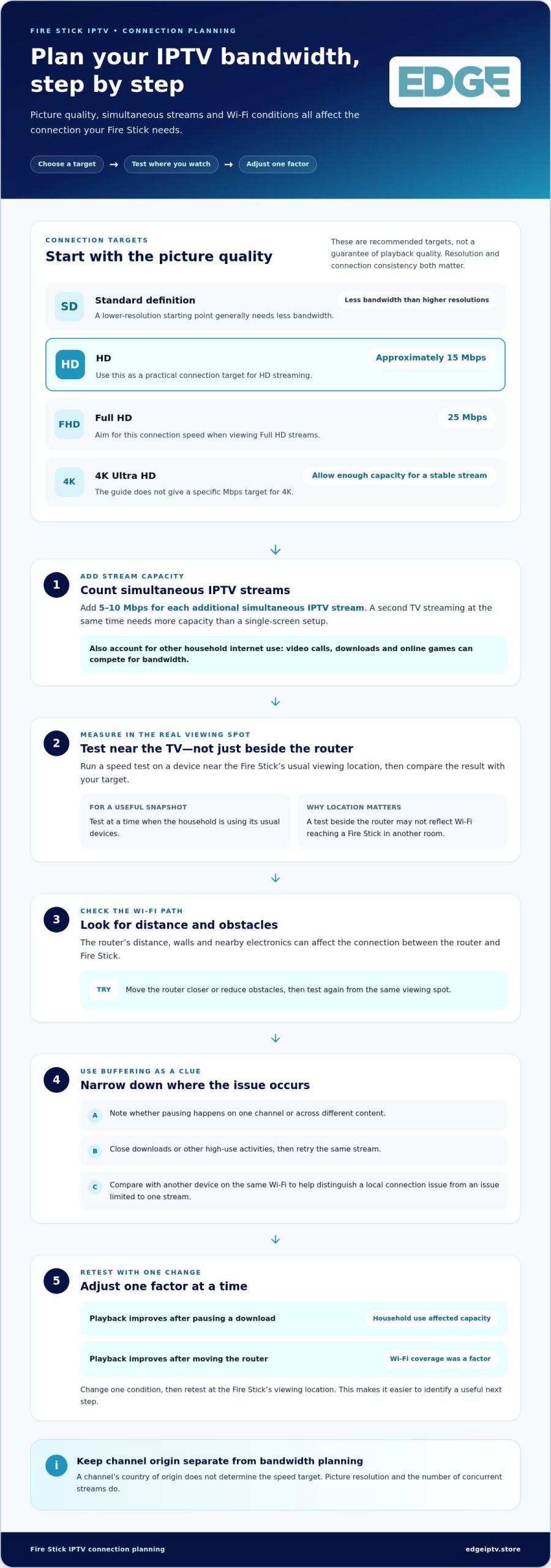
Set your internet target around picture quality, active streams, and the Fire Stick’s connection in its usual viewing spot. In Canada, a speed test near the TV gives a more useful snapshot than testing beside the router.
- Pick a speed target for the picture quality. Standard-definition IPTV generally needs less bandwidth than higher-resolution streams. For HD, approximately 15 Mbps is a practical target; Full HD calls for 25 Mbps. For 4K Ultra HD, choose a connection with enough capacity to support a stable stream. These are recommended targets, not a guarantee of playback quality. The stream’s resolution and the connection’s consistency both affect viewing.
- Account for every active stream. Add 5-10 Mbps for each additional simultaneous IPTV stream. A Fire Stick streaming while another television runs IPTV needs more capacity than a single-screen setup. Include other household internet use in your planning too. Video calls, downloads, and online games can compete for bandwidth while live TV is playing.
- Test from the Fire Stick’s viewing location. Run a speed test on a device near the TV, then compare the result with your chosen target. Test at a time when the household is using its usual devices. A result measured beside the router may not reflect the connection reaching a Fire Stick in another room.
- Check the Wi-Fi path before changing plans. The router’s distance, walls, and nearby electronics can affect the connection between the router and Fire Stick. Try moving the router closer or reducing obstacles, then test again from the same viewing spot. Keeping the test location consistent makes it easier to see whether a change improves the result.
- Use buffering as a troubleshooting clue. If a stream pauses, note whether it happens on one channel or across different content. Close downloads or other high-use activities and retry the same stream. Then compare results with another device on the same Wi-Fi. This helps separate a local connection issue from a problem limited to one stream.
- Keep channel origin separate from bandwidth needs. Canadian and international channel lineups can include live TV, movies, and series. A channel’s country of origin doesn’t determine the speed target; picture resolution and concurrent streams do. For example, an international 4K stream needs the same 4K target as a Canadian 4K stream. Check the actual lineup separately from your connection planning.
- Adjust one factor at a time. If playback improves after pausing a download, household network use was affecting available capacity. If moving the router helps, Wi-Fi coverage was a factor. Change one condition, then retest the Fire Stick’s viewing location. This simple comparison gives you a clearer next step than changing your internet plan and device settings together.
Canadian IPTV legality and consumer considerations
IPTV legality depends on whether the content is authorized for distribution, not simply on the player or Fire Stick. Subscription terms determine fees, contracts, device limits, and regional access. Edge IPTV states that its plans have no contracts and no hidden fees.
-
Choose a Canadian IPTV Service
Compare the stated lineup with the Canadian channels and sports programming you watch. Look for named networks and programme details instead of relying only on a service’s total channel count. IPTV is a delivery method, so assess the available content separately from the app used to watch it. Clear terms and channel information help you make an informed choice.
- Consider content authorization before subscribing. Review how the service describes access to live TV, sports, movies, and on-demand programming. An IPTV player displays streams, but the app itself doesn’t establish whether content is authorized for distribution. Read the subscription terms and content descriptions. A channel appearing in an app does not, by itself, confirm its authorization or availability in Canada.
-
Consider VPN Use
Read the subscription terms before routing your Fire Stick connection through a VPN. A VPN changes how internet traffic travels; it doesn’t grant viewing rights or add channels to a lineup. It may also affect how a service handles regional access or playback. Don’t assume a VPN is required. Consider the terms, your reason for using one, and whether the service works as intended without changing your connection.
-
Check Fees and Subscription Restrictions
Read the payment and renewal terms before activation. Edge IPTV states that its plans have no contracts and no hidden fees. Check the selected plan’s conditions, including renewal and cancellation details. Also confirm the account’s device and simultaneous-stream limits. These are separate restrictions, and both matter if people in your household want to watch at the same time.
- Check regional access and channel details. A lineup may include Canadian and international channels, but access depends on the service’s terms and content availability. Look for the specific networks, sports coverage, and programme information you want. Don’t assume a listed sports network carries every event. Compare named channels and viewing conditions with your household’s preferences before choosing.
- Keep a record of the terms you rely on. Save the plan description and access conditions shown when you subscribe. If a channel is unavailable or playback differs from what you expected, compare the issue with those details. This helps you understand whether it relates to regional access, account restrictions, or the advertised lineup, rather than assuming every issue has the same cause.
What is IPTV, and why pair it with a Fire Stick?
IPTV delivers television over the internet, while a player displays the streams. Pairing a Fire Stick with a compatible player brings live TV and on-demand viewing to your television.
- Choose the login method your subscription uses. Check the setup instructions before opening the player. Xtream Codes, M3U, and Stalker Portal are different ways to connect account access. Don’t treat them as interchangeable. The correct option depends on the details supplied for your subscription and the fields shown in the player’s settings.
- Use Xtream Codes for its matching credentials. In a compatible player, choose the Xtream Codes login option. Enter the username, password, and server address exactly as provided. A server address tells the player where to request the playlist and streams. Check for extra spaces, missing punctuation, or a copied address that cuts off before submitting.
- Add an M3U playlist when that’s your provided format. Select the playlist or M3U option in the app, then enter the supplied playlist link. Some players label the field “M3U URL” or “playlist URL.” Save the entry and allow the player to load its channel list. If it fails, compare the full link with your setup details before changing other settings.
- Select Stalker Portal only for portal credentials. This method connects through a portal address and the access details specified for that setup. Enter each value in its matching field; don’t paste an M3U link into the portal field. If the player asks for a device identifier, use the method provided in its instructions rather than inventing a value.
- Check app compatibility before installing. IPTV Smarters is one example of a player name readers may encounter, but app names and supported login methods vary. Confirm the player supports the format you need and review its publisher in the Amazon Appstore. A player is software, not a source of channels, movies, or series; the subscription provides the access details.
- Treat Downloader codes with care. A Downloader code can point to an app download, but it doesn’t verify the app’s source or rights. Prefer an app-store listing when the compatible player is available there. If setup instructions call for another source, check that it identifies the app and publisher clearly. Avoid entering account details into an unfamiliar player simply because a code installed it.
- Test the playlist after login. Save the chosen method, then open a channel and check that the player loads its guide. If the list is empty, revisit the selected login type and the server or playlist details. For IPTV Canada viewing, the Fire Stick is the display device, the player handles playback, and the subscription’s access terms determine the available content.
IPTV subscription plans and activation
Choose a subscription term and prepare your account details, then enter them in a compatible IPTV player. To activate an IPTV subscription for Amazon Fire Stick, make sure the login method matches the app before testing playback.
- Compare subscription terms with your viewing plans. A shorter term can suit a first-time setup, while a longer term may fit established viewing habits. Check renewal, cancellation, and payment terms before selecting a plan. Focus on the period, included access, and conditions, not just a label such as “premium.” Choose based on how often you watch and how long you want access.
- Prepare the details you’ll need for activation. Keep the account email, password, and setup instructions accessible. Your IPTV player may require Xtream Codes credentials, an M3U playlist, or portal details. These formats aren’t interchangeable. Match the information you receive to the login option shown on screen, and copy each entry carefully.
- Install a compatible player on Fire Stick. Search the Amazon Appstore for a player that supports your account’s login format. TiviMate is one player name you may encounter; app availability and supported features can vary. Check the app listing before installation. Don’t assume every player accepts the same playlist or credentials.
- Open the app and activate the account. Choose the correct login option, then enter the supplied server address, username, password, or playlist link. Review each field before saving. If the player shows a loading message, let the playlist load before trying another login method. Changing settings repeatedly can make a mistyped detail harder to spot.
- Use Developer Options only when your setup requires it. Fire TV hides this menu on some devices. If needed, open Settings, select My Fire TV, then About, and select the Fire TV Stick name 7 times to reveal Developer Options. Follow the app’s specific installation instructions and avoid enabling settings you don’t need.
- Test activation before settling in. Open a live channel, then check a movie or series in the player. Confirm that the guide loads and playback starts. If an IPTV subscription for Amazon Fire Stick won’t log in, compare the credentials and selected login type with your setup instructions. If a Fire OS update affects an older app build, reinstalling a compatible player may restore access.
- Choose your next step. Once you know your preferred login method and viewing needs, compare the available IPTV subscription options and select a term that fits your plans.
Edge IPTV: 12 Month
Edge IPTV offers a 12 Month subscription for viewers ready to choose a longer plan for their Fire Stick setup. If you’re still deciding how long you’ll use IPTV, compare it with the 6 Months, 3 Month, and 1 Month options against your viewing routine.
Choose a term that suits how settled your setup feels. A shorter subscription may suit viewers who want to start with less commitment, while a longer term may fit those planning to keep watching. Have your Fire Stick ready and follow the subscription’s login instructions in a compatible IPTV player. The right plan matches your intended viewing period and setup.
Explore Edge IPTV’s subscription options, or visit edgeiptv.store to learn more.
Make your Fire Stick setup your own
Next, shape the viewing experience around what you watch. Once your IPTV subscription for Amazon Fire Stick is active, organize channels or favourites in the player around your routine. Keep live sports, news, films, and series easy to find, and remove clutter that slows browsing. A simple home screen makes it easier to choose what to watch without repeating the setup.
Build a short test routine. Open the content you use most, check that the guide is useful, and note any playback issues alongside the channel or programme involved. Clear details make troubleshooting more focused if you need help. Store your login information securely, and share account details only as allowed by your access terms.
Ready to take the next step? Explore Edge IPTV and choose a subscription option that fits your viewing plans. Set up your screen, make the experience yours, and enjoy getting started.
Frequently Asked Questions
Can You Use an IPTV Subscription on Other Devices?
Yes, a subscription can work on other supported devices, depending on its terms. Edge IPTV supports Amazon Fire Stick, smart TVs, Android devices, Windows and macOS computers, MAG devices, and devices that support M3U or Xtream Codes XC portals. For example, you could use a compatible player on a computer instead of your television. Check device and simultaneous-stream conditions before planning household viewing.
Are IPTV Players Legal?
An IPTV player is software for opening streams, not the source of the programmes. Consider the player and content access separately: a familiar app name alone doesn’t establish that a channel or film is authorized for distribution. Review the service’s terms and content information before signing in. Check that the subscription identifies the channels and viewing access it provides, rather than relying only on an app listing.
What Canadian Channels Do You Get?
The Canadian channels available depend on the subscription lineup. Before choosing, look for the specific networks you watch, such as local news, general entertainment, or sports coverage. A high channel count doesn’t show whether a particular Canadian station or event is included. Compare channel names and the programme guide with your priorities, then focus on what your household will use.
Why won’t my Firestick install the app?
First, check that the app is compatible with your Fire Stick and available in your region’s Amazon Appstore. Confirm the device has enough free storage, restart it, and try downloading again. If installation fails after an update, check whether the app version supports your Fire OS version. Avoid installing files from unknown sources just to get past an error.
What is IPTV and how does it work on an Amazon Fire Stick?
IPTV delivers television through an internet connection, and the Fire Stick displays it through a compatible player. The player connects to the access details tied to your subscription and loads the streams available to your account. A live channel appears inside the player rather than as a separate Fire TV broadcast channel. The Fire Stick runs the app; it doesn’t create the lineup.
Which Canadian IPTV services offer live TV, sports, movies, and on-demand content?
Edge IPTV is one option, with live sports, pay-per-view events, live channels, and on-demand movies and TV shows. Its service includes a TV guide and supports Amazon Fire Stick. Review the programme categories and channel lineup against what you plan to watch. This makes it easier to judge whether the service’s mix of live programming and on-demand viewing fits your household.
Can IPTV apps be installed from the Amazon Appstore or require sideloading?
Some IPTV players are available directly through the Amazon Appstore; others may require a different installation method. Search for the player you intend to use and review its listing and supported login formats. If instructions involve sideloading, make sure the app comes from a source you trust. A download code alone doesn’t identify who published the app or what it does.
What internet speed and Fire Stick model are recommended for IPTV streaming?
Aim for at least 25 Mbps for HD streaming and 50+ Mbps for 4K. Add capacity when other devices or IPTV streams use your home connection at the same time. No particular Fire Stick model is endorsed here; choose a device that supports the player and streaming quality you want. Test the connection near your television, since Wi-Fi strength there affects the experience.